
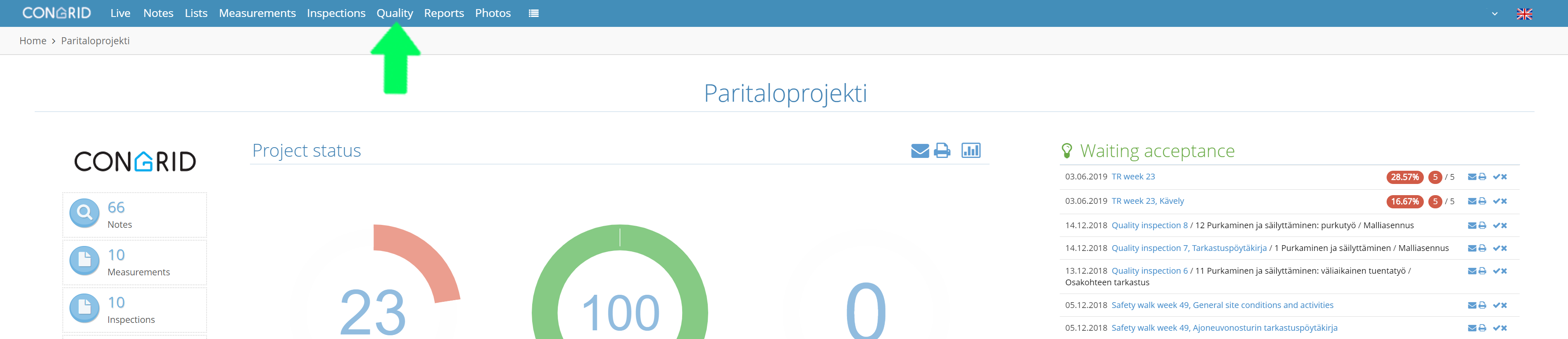
Enter your desired project and select Quality.
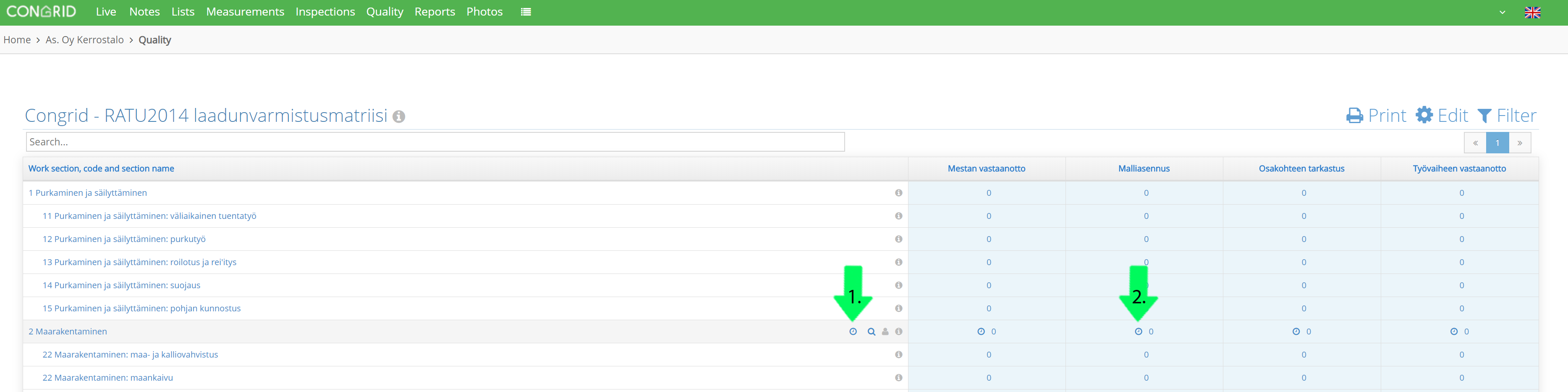
Dragging your cursor over work sections will make the clock icons appear.
1. Set an actualized schedule for a work section by clicking the clock -icon.
2. Set an actualized schedule to a work section activity.
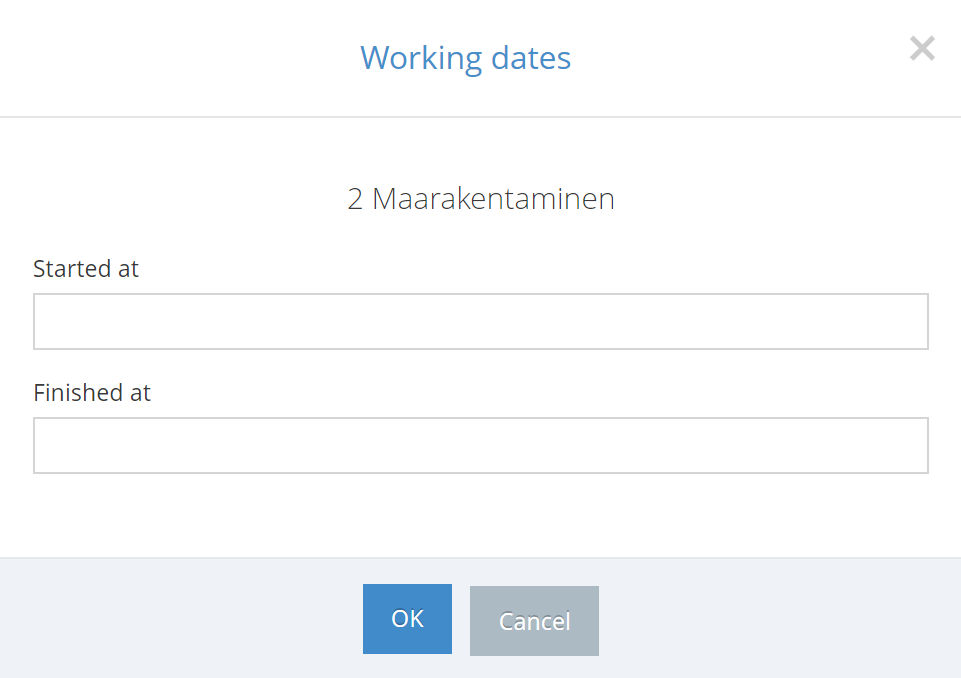
A pop-up window will open where you can set dates for an actulized schedule.
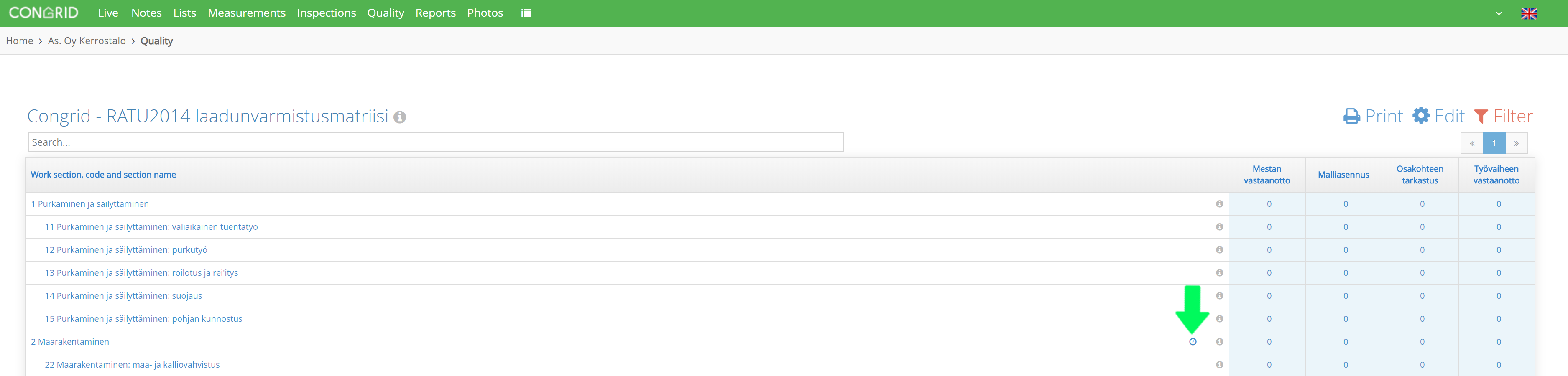
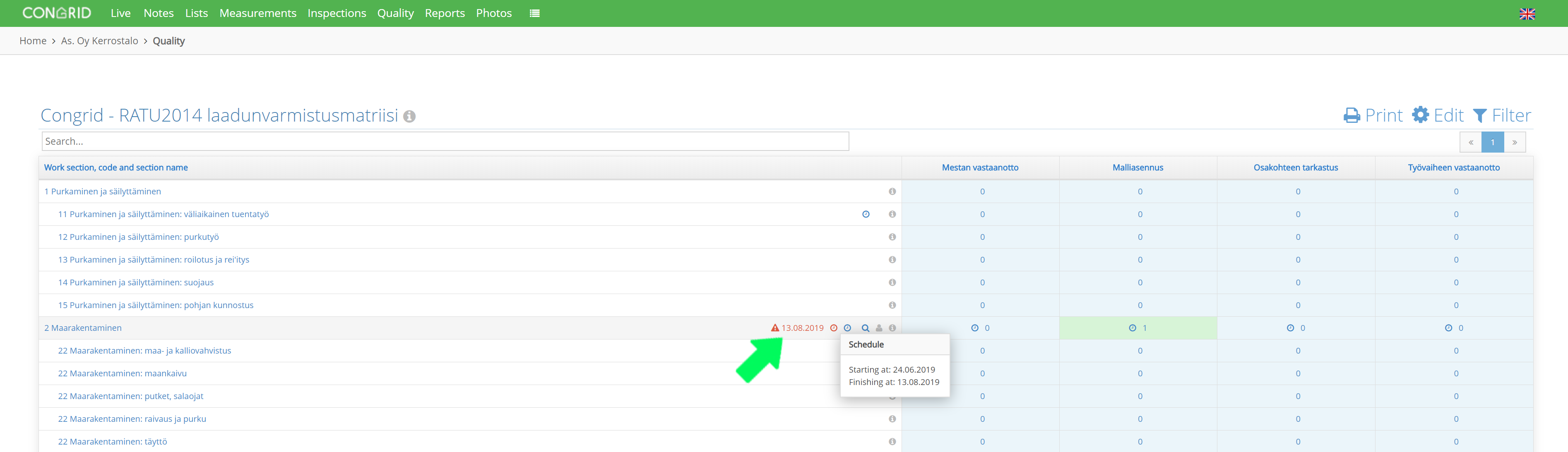
When an actualized schedule has been set, a blue clock -icon will appear on the work section.
If a work section has unaccepted quality inspections or notes that are late for the actualized schedule, the quality matrix will have a notification. The notification will disappear from the matrix when it is set as Accepted in the Inspections page.
See guide: Editing an inspection status
See guide: Setting a planned schedule
Comments
0 comments
Please sign in to leave a comment.