
You can set a planned schedule and an actualized schedule for project work sections.
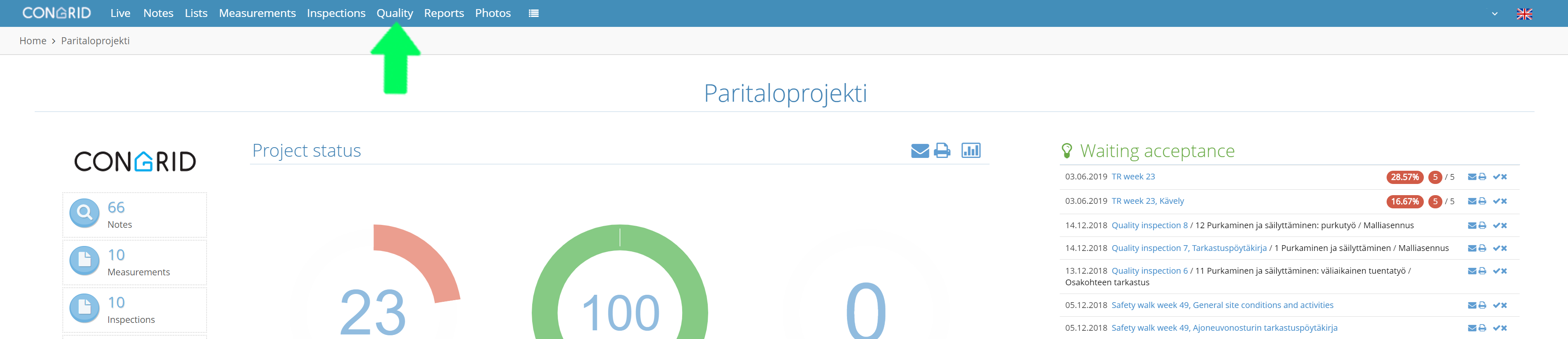
Enter your desired project and select Quality.
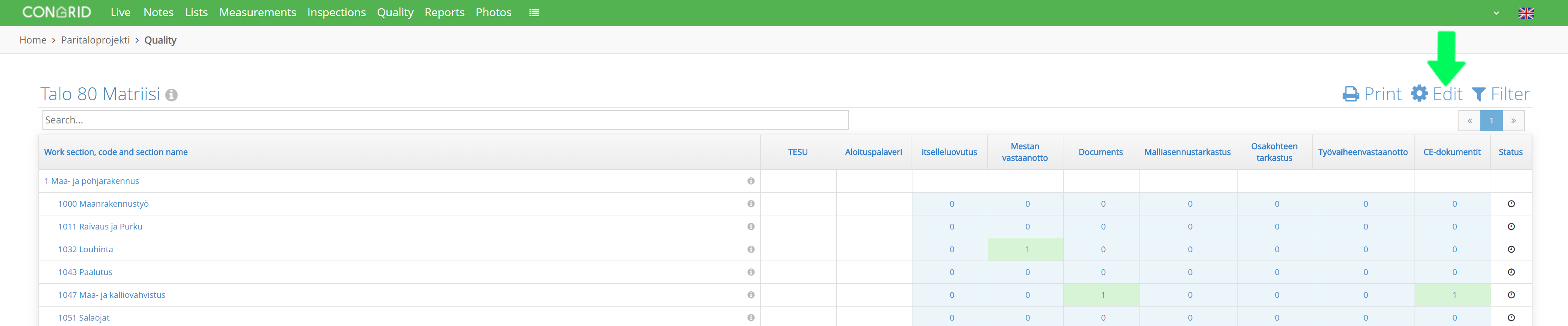
Enter a planned schedule by clicking Edit.
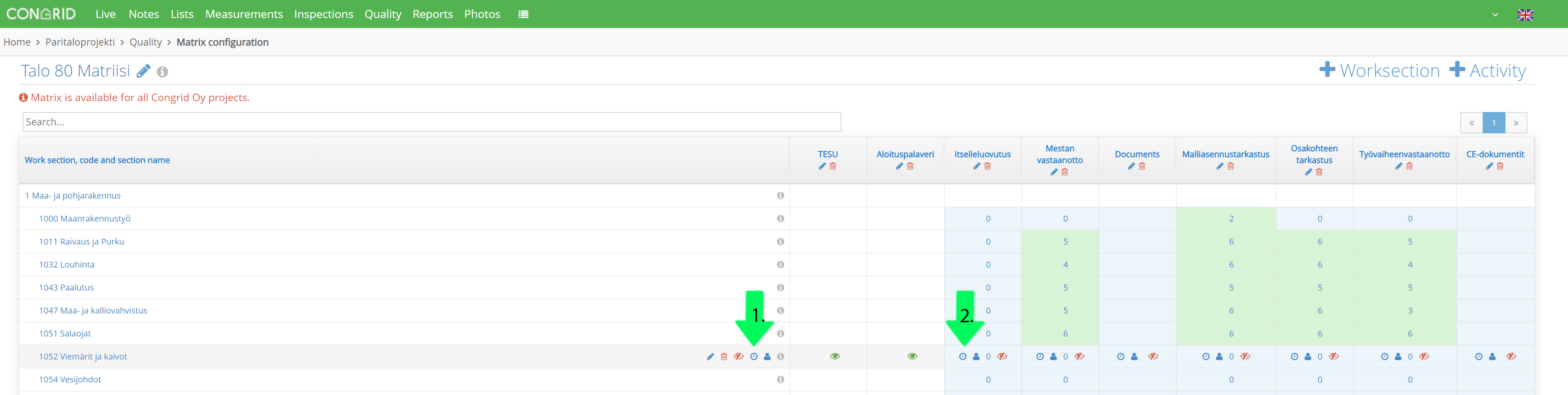
Select a work section and click its Clock -icon.
1. Set a planned schedule for a work section.
2. Set a planned schedule for work section activity.
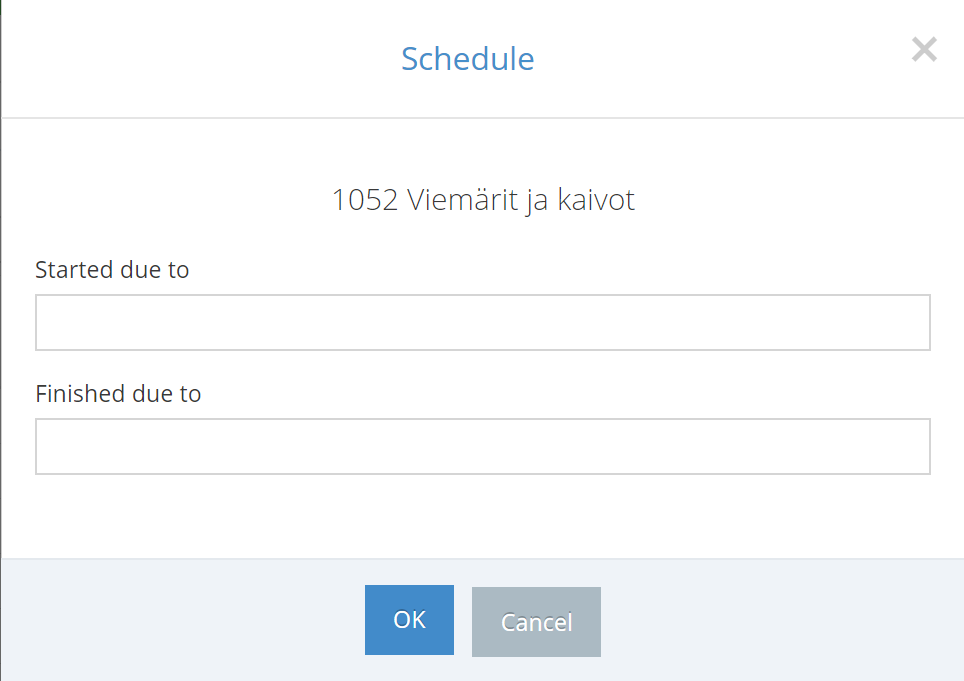
A Pop-up window will open where you can set desired dates.
1. When a time frame has been set you can exit the matrix editing -view by clicking Quality.
2. A green clock icon will appear on all work sections that have a planned schedule.
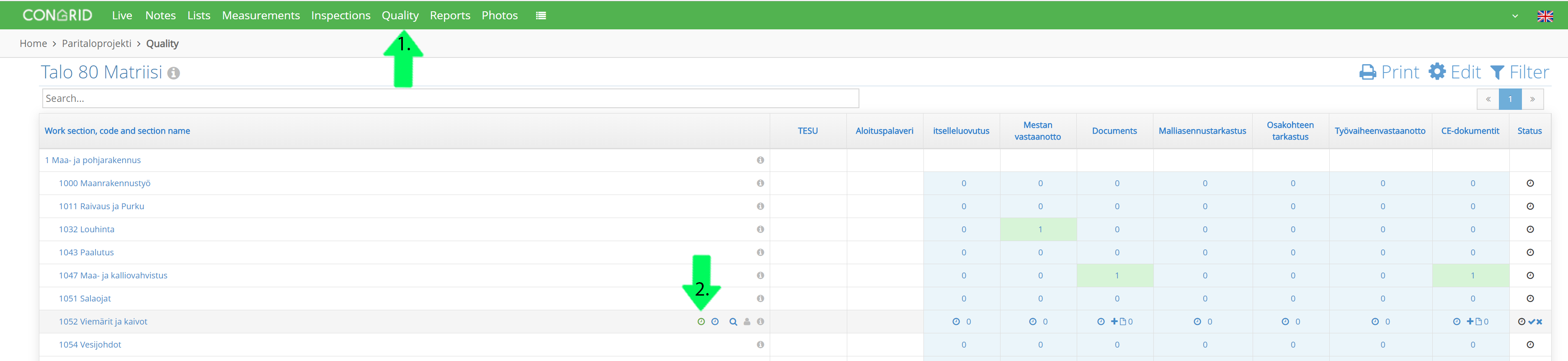
Note that setting a planned schedule can only be done in the Edit view of the matrix. Entering an actualized schedule is done in the Browse view of the matrix. A planned schedule can be re-edited according to these instructions.
See instructions: An actualized schedule
Comments
0 comments
Please sign in to leave a comment.