
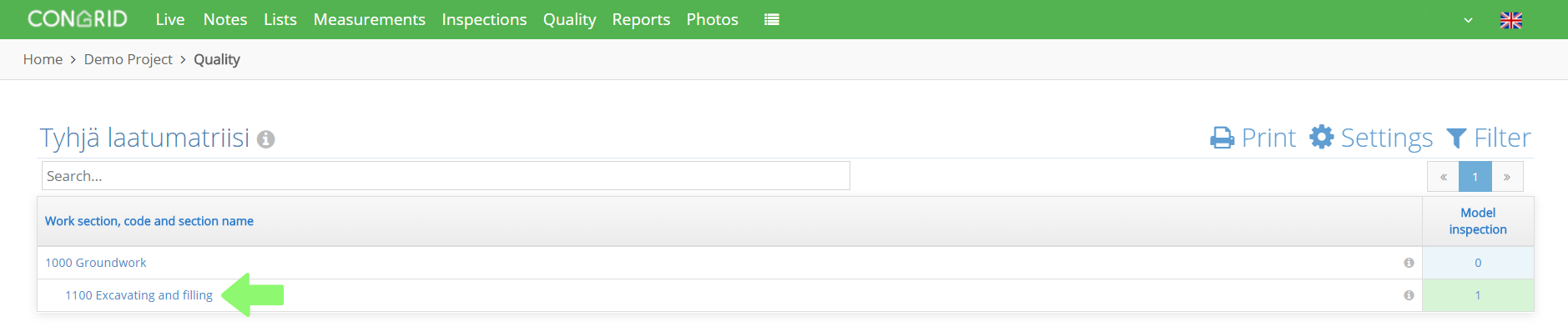
Click Quality.

Then choose a work section where the new quality inspection template will be added to.
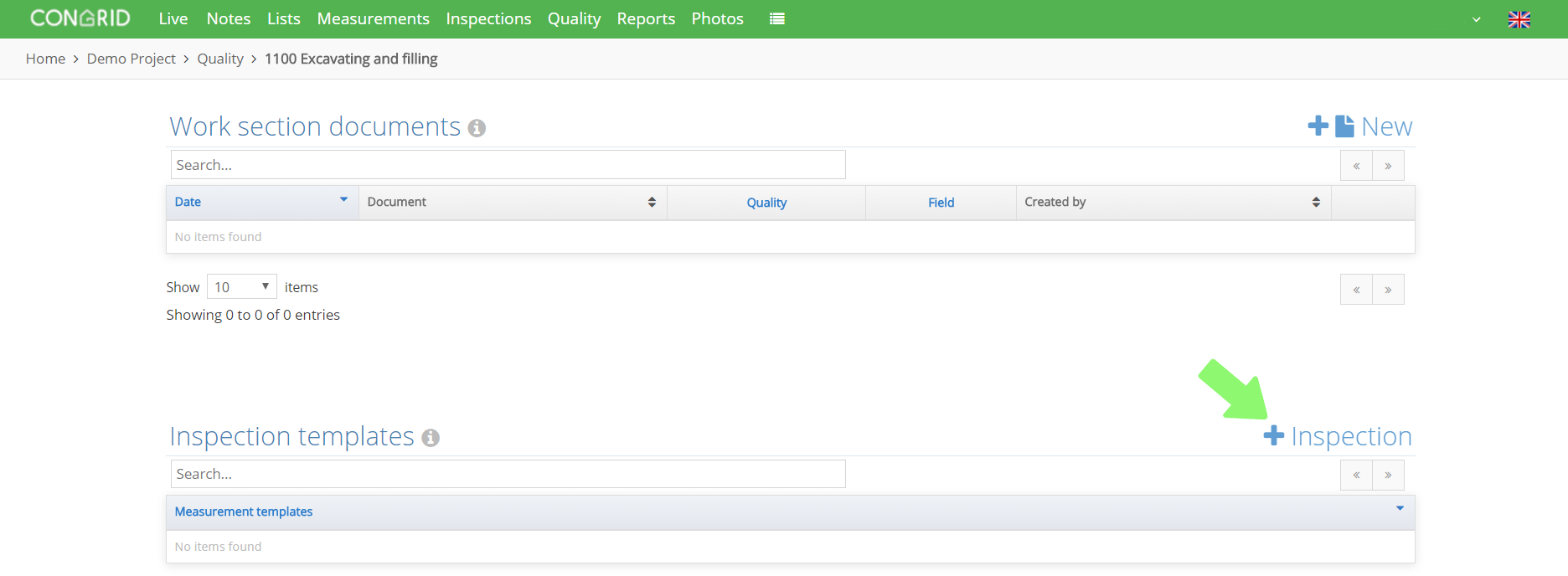
Click + Inspection icon.
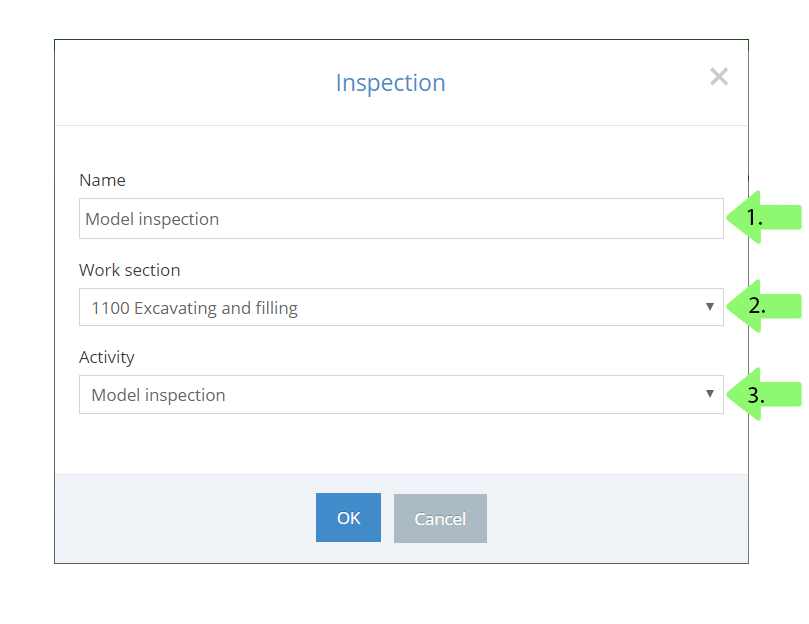
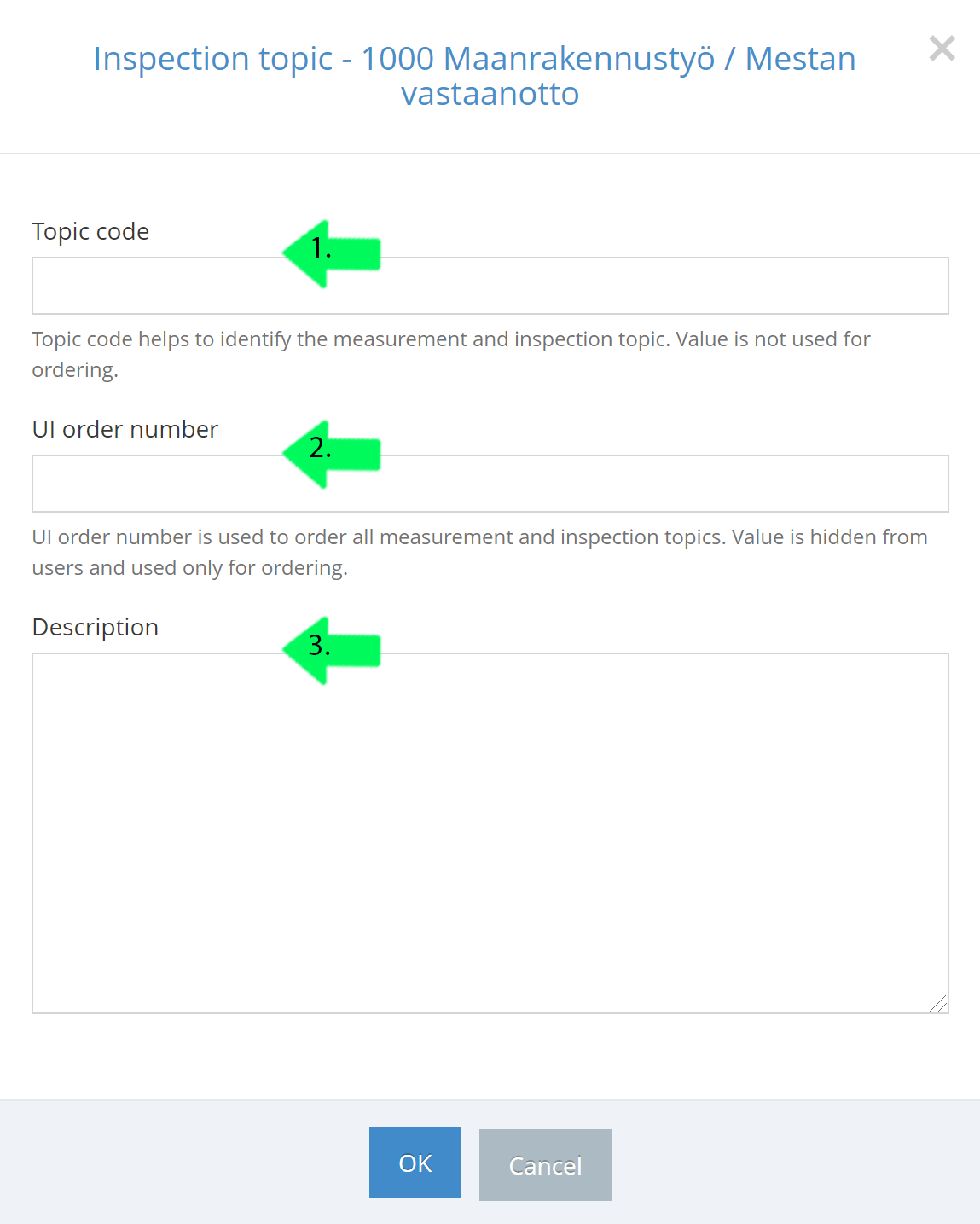
1. Define a name for an inspection.
2. Define a work section. The work section you clicked before will be set as default.
3. Define Activity for a quality inspection template. Columns that don't have an inspection won't appear in the matrix - these are plan, review and file.
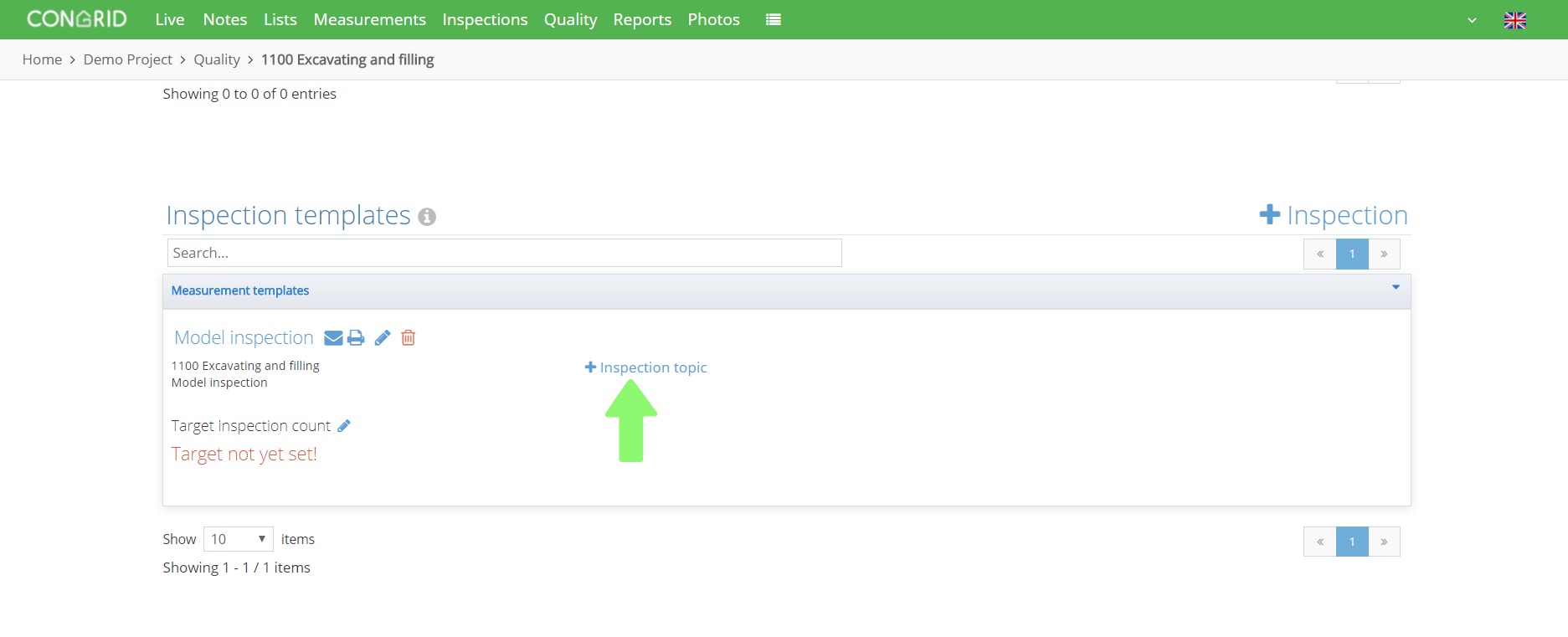
Add inspection parts by clicking + Inspection topic.
1. Set a topic code. The topic code helps to distinguish diffrent measurments and inspection topic's from each other. The topic code can be letters and numbers.
2. Define an inspection topic's UI order number.
3.Set a description.
After setting these parts, click OK to save.
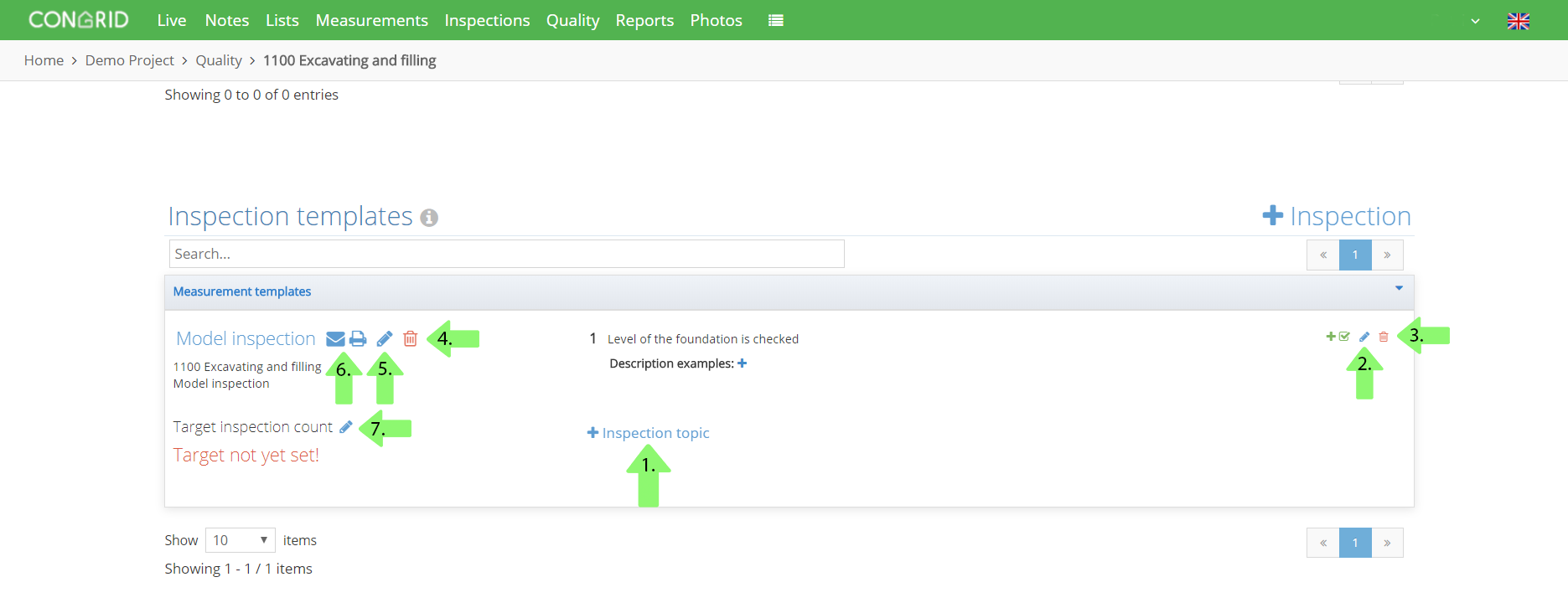
1. Add a new inspection topic to an inspection template.
2. Edit an existing inspection topic, change the order number and description.
3. Delete an inspection topic.
4. Delete an inspection template. If an inspection template is deleted, its topic's will disappear also.
5. Edit an inspection base - change its name, inspection topic, and location in the matrix's column.
6. Send an inspection template as an email.
7. Define target inspection count. You can also define locations where the inspections are to be carried out in the area hierarchy.
When necessary parts have been added you can close the page. It's important to remember to update projects from Congrid Live. Otherwise, the changes won't appear on the Mobile App.
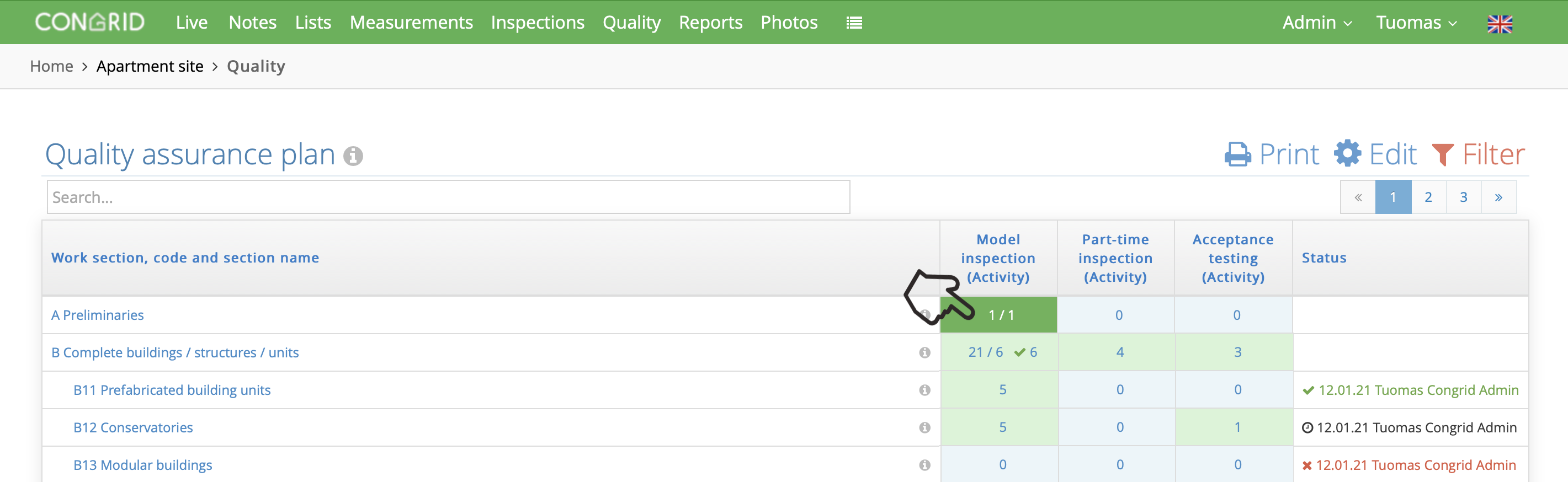
Approved inspections in the quality matrix
When the target number of inspections has been set in the inspection template and all inspections have been completed and approved, a fully completed matrix cell is indicated by the green color in the matrix cell.
Comments
0 comments
Please sign in to leave a comment.