
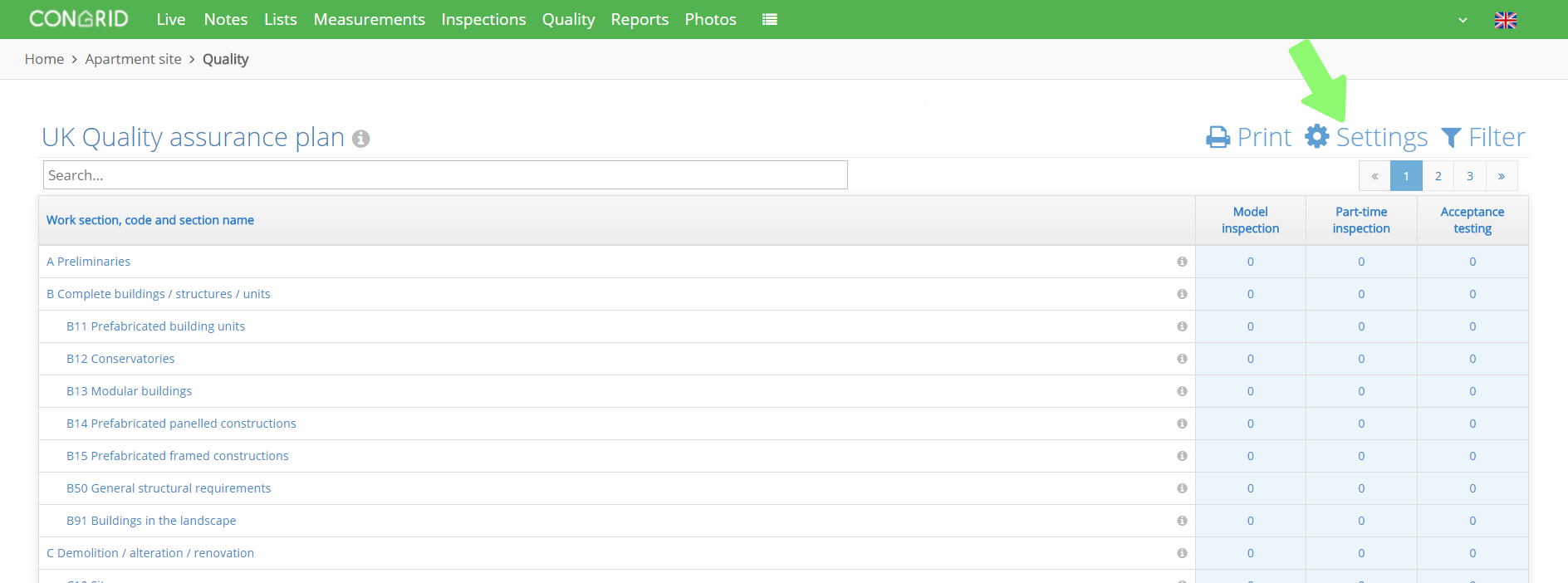
First, click Quality.

Activate an editing setting to start editing the matrix. Click Settings.
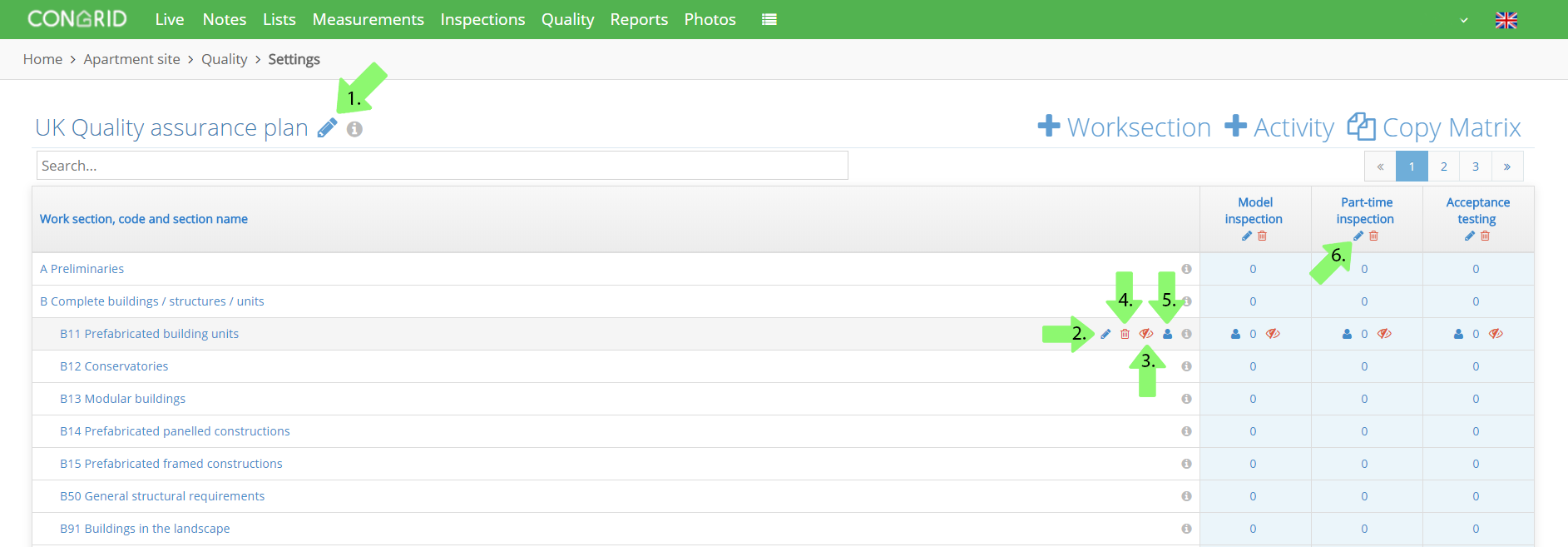
The Quality Matrix's icons mean the following things:
- Pen - Edit
- Wastebasket - Delete
- + - Add information
- Eye - Edit the information's visibility
- Person - Set responsible persons
1. Edit a matrix's name and availability within your company.
2. Edit a work section.
3. Edit a section's visibility.
4. Delete a section.
5. Set a responsible person to a section.
6. Editing of the matrix column.
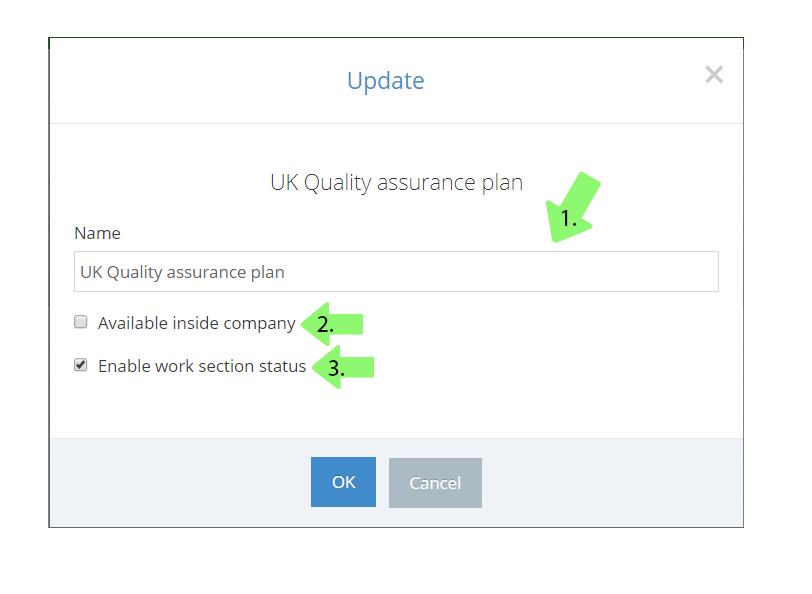
1. Edit a matrix's name
2. Define, if other users can use a copied matrix.
3. Define a section's status.
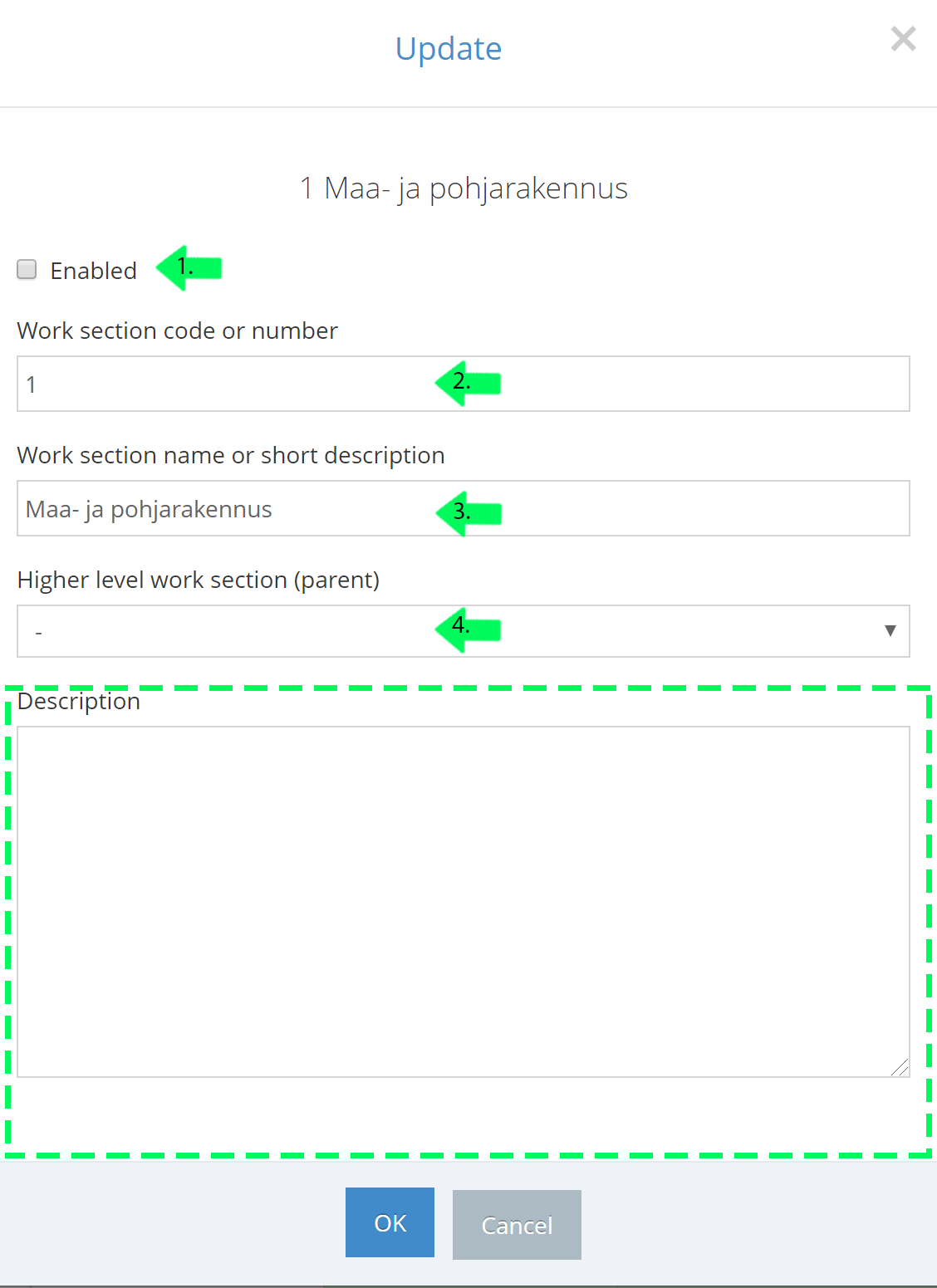
1. Set availability of a work section (tick the box if you want the work section to be available).
2. Set an order number. Please note, a quality matrix will add higher-level work sections into measurement results.
3. Enter a work sectionäs name.
4. Set a higher level work section (which parent section under the work section will be entered)
In the description field, you can type in a longer, more descriptive explanation for a work section. (The description will appear in the grey information icon next to the work section).
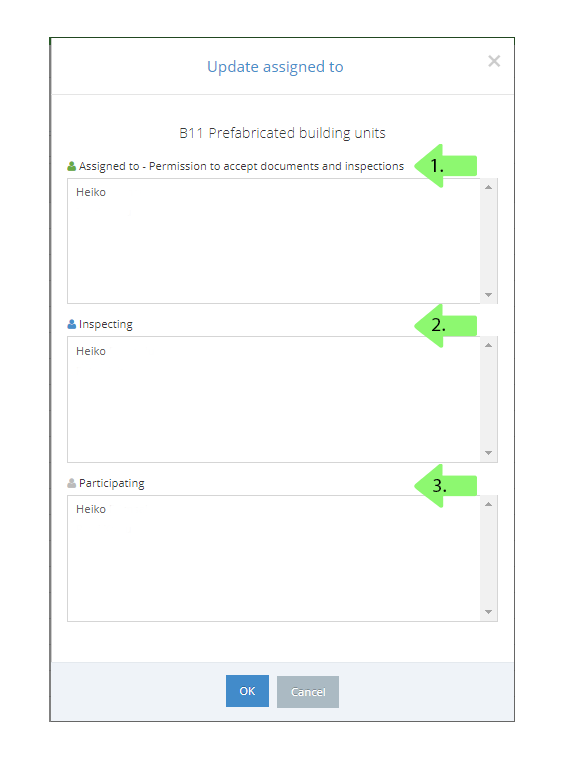
1. Set a responsible person who has rights to accept documents and inspections.
2. Define who can make inspections in the work section.
3. Define personnel who can participate in inspections.
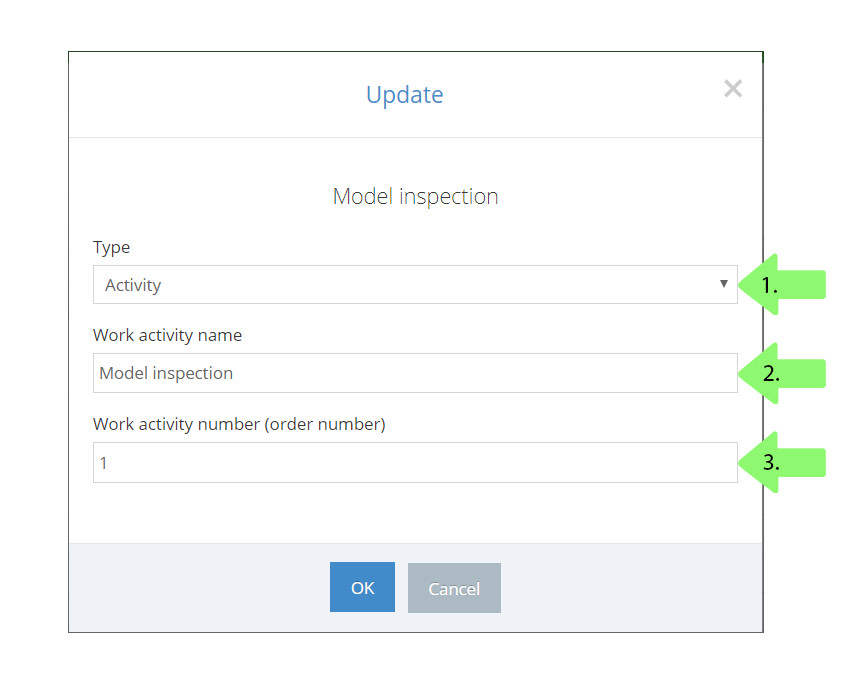
1. The column's type can be one of the following:
- Inspection - Inspections are made using the Congrid App
- File
- Plan
- Review - A meeting which is held with a working group to acknowledge the working plan's content.
2. Set a name for an inspection
3. Set a column's order number in the matrix
Comments
0 comments
Please sign in to leave a comment.