
Start by clicking Reports.
Click + Report to create a new report. 
The following instructions include all parts although they are not all obligatory.
Please note, if you want to choose more than one option at the same time, hold the ctrl/cmd key down and click the options.
Choose a report type from the following options
- Photo
- Memo
- MVR
- Quality Measurement
- TR
- Asphalt
- Note
- Safety
- Maintenance
- Quality
- Safety Walk
Then set the following information according to the notes:
- Note class
- Responsible company
- List/measurement/inspections
- Note/Notes status
- Area
- General tag
- Created by user
- Updated by user
- Work Activity
- Inspection
- Please note, tasks & inspections won't show on filtering options if the quality module hasn't been activated for the project, or if the quality matrix hasn't been created.
See guides:
2. Define a report's printout settings
Set a name which will be a headline of the printout
The notes can be arranged in the report by:
- Date
- Contractor
- Area
- Note Number
- Topic
Set printout's topics' visibility settings.
- Floor Plans
- Photographs
- Contractor Colors
- A contractor's colour will show on the report. Each contractor will have their own colour per project.
- Status Events
- Project Graphics
- A safety measurement diagram will show on the report. The diagram will only be visible in reports related to Safety Measurements.
- Report/printout name - if you don't set any name for the report, the file will have an automatically generated name.
- A safety measurement diagram will show on the report. The diagram will only be visible in reports related to Safety Measurements.
3. Save changes by clicking Update.
4. After viewing a report draft, it can be changed to pdf/xlxs, or it can be sent by email without making changes to the file.
If the email is sent from Congrid Live, the email sender will be noreply@congrid.fi. 
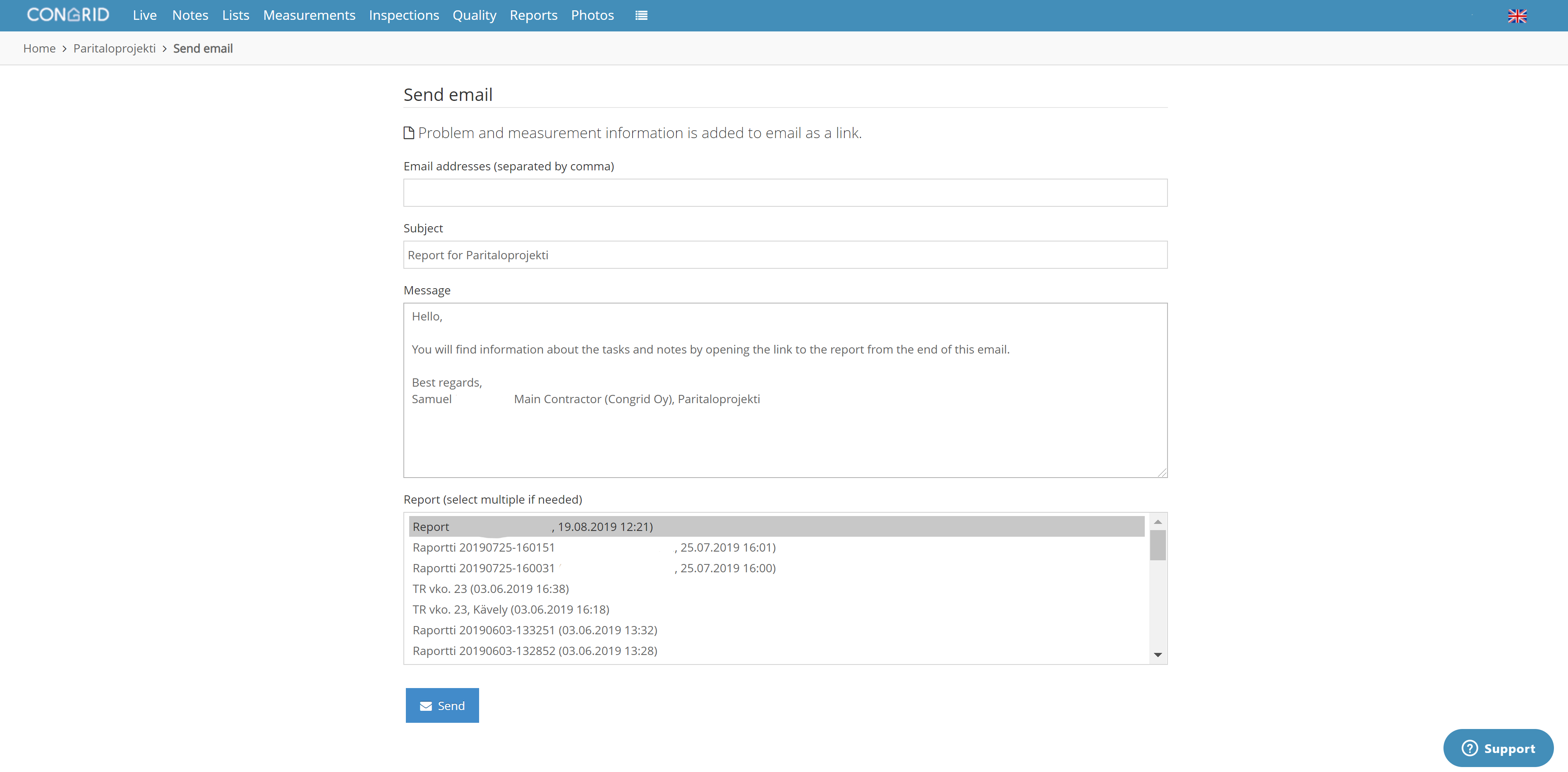
4. The Send email section includes the following parts:
- A receiver
- Headline/Subject
- Message
- Send many reports by holding the ctrl/cmd button.
Comments
0 comments
Please sign in to leave a comment.