
This feature is not yet available to all users, so if you cannot find a feature which is referred to in this document in your project, it means that the feature in question has not been activated for your project. If your company needs to access to Q&A list, please contact our support team at support@congrid.fi
On the home page, select Q&A list from the Quality's drop-down menu
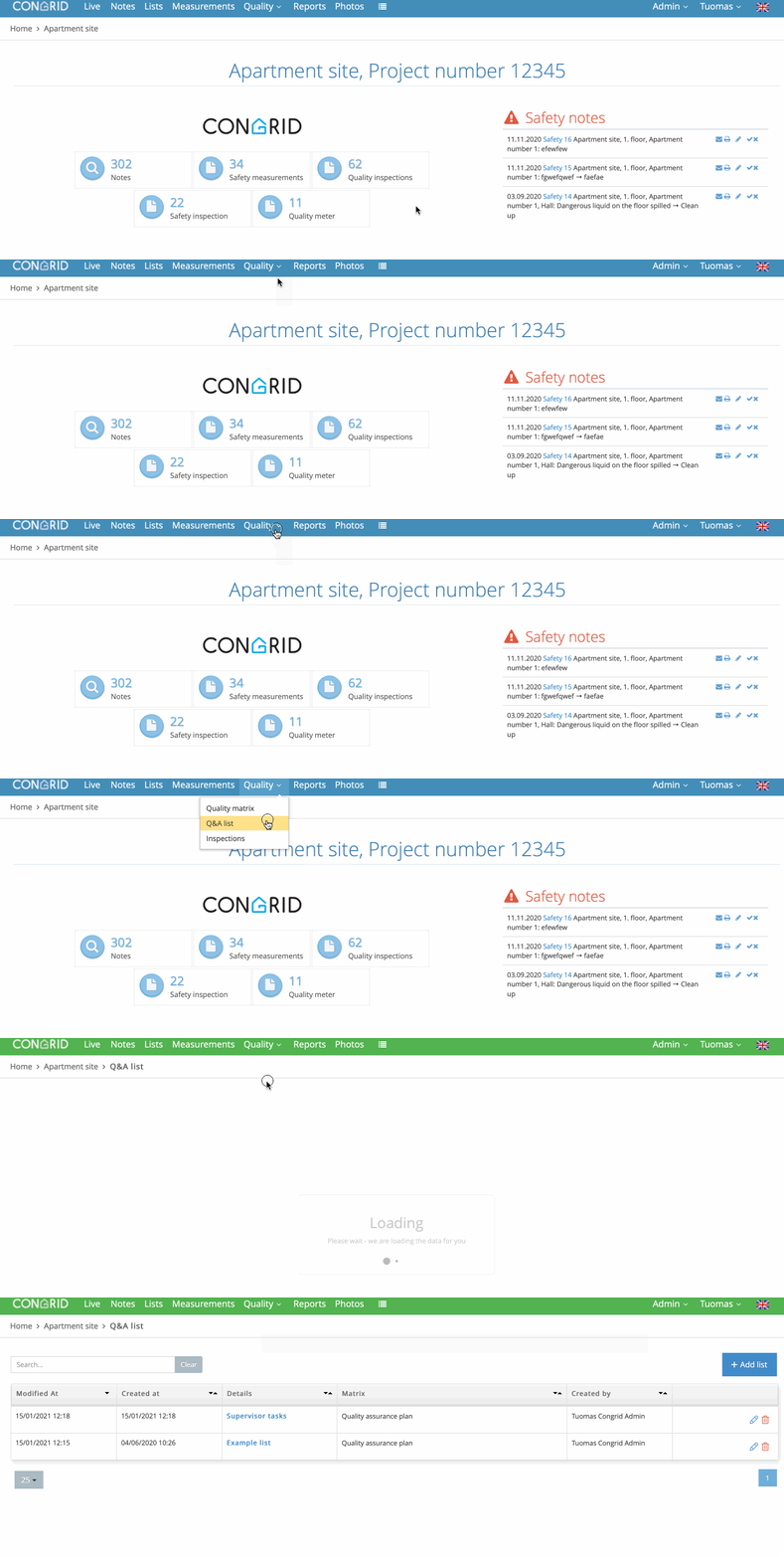
This displays the Q&A list page
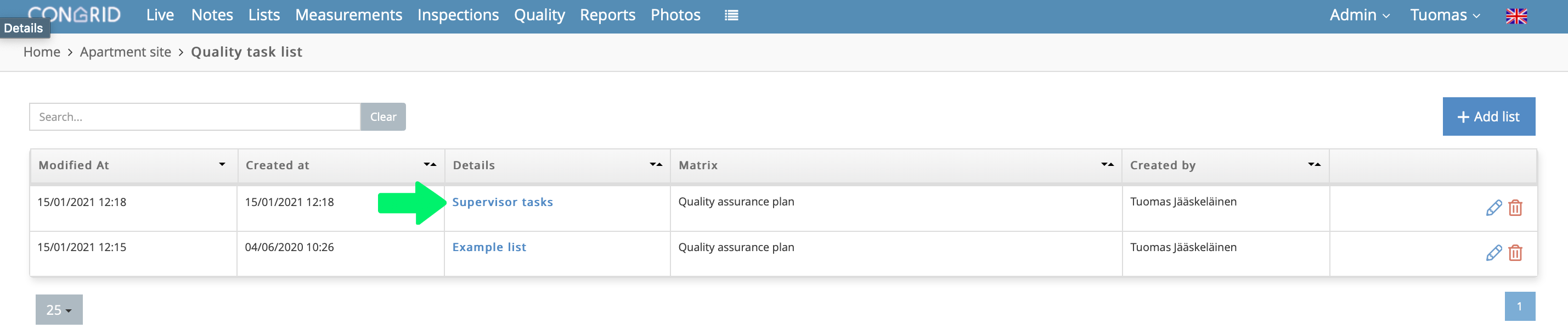
Select a list:
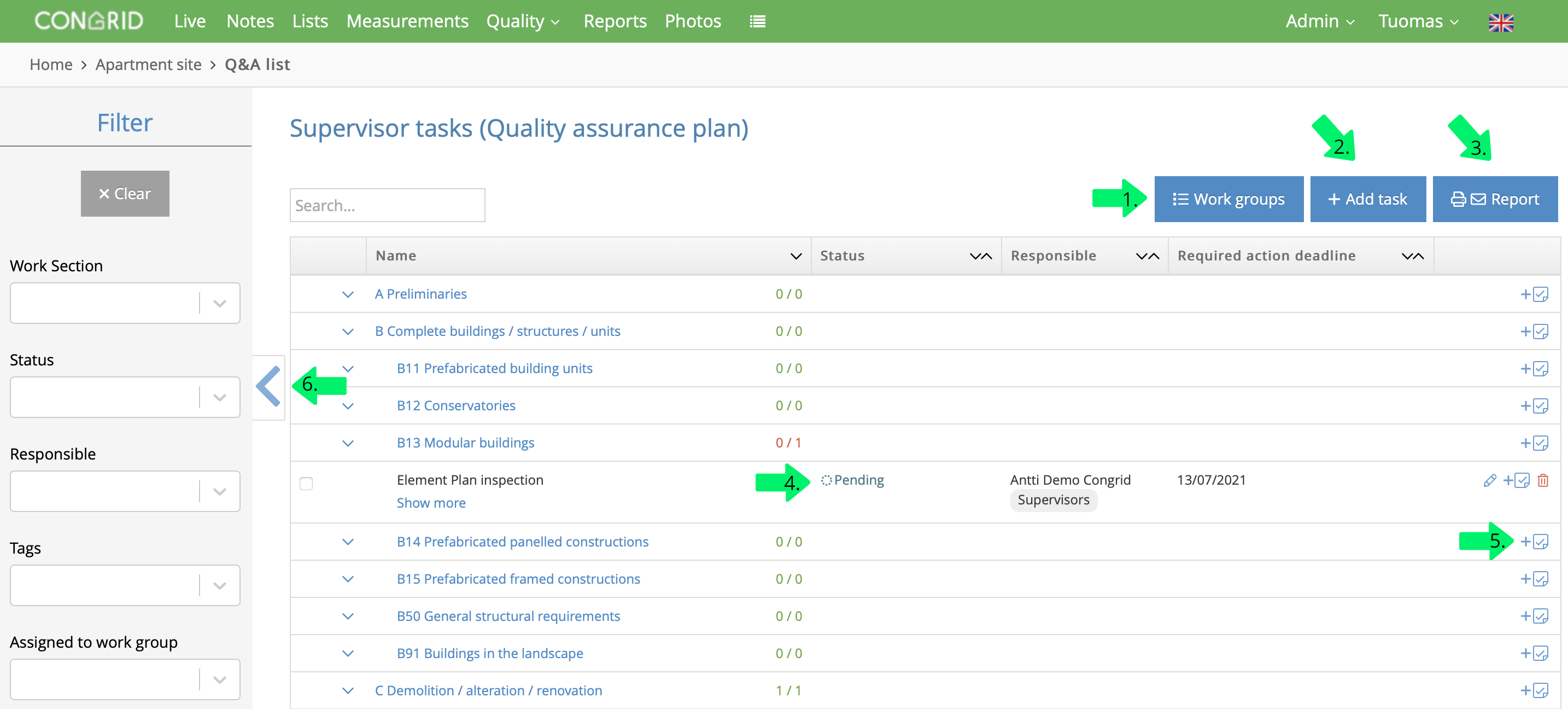
Inspection document – Functions
You can find all the tasks that have been created for the Q&A list on this page. The work sections are retrieved from the quality assurance matrix that was selected when the list was created. You can use the system’s existing quality assurance matrices as inspection document templates or create a new matrix for this purpose.
- Modify/manage the workgroups defined for the tasks
- Add a new inspection document task
- Create an inspection document report
- Change the task status
- Add a new task or sub-task to work section
- Filter tasks.
Adding tasks to the inspection document
When you add a new task or sub-task to a Q&A list, a new window opens. The task is created directly to a work section. A sub-task is a smaller task related to a larger task. Sub-tasks must be completed before a group of tasks can be approved.
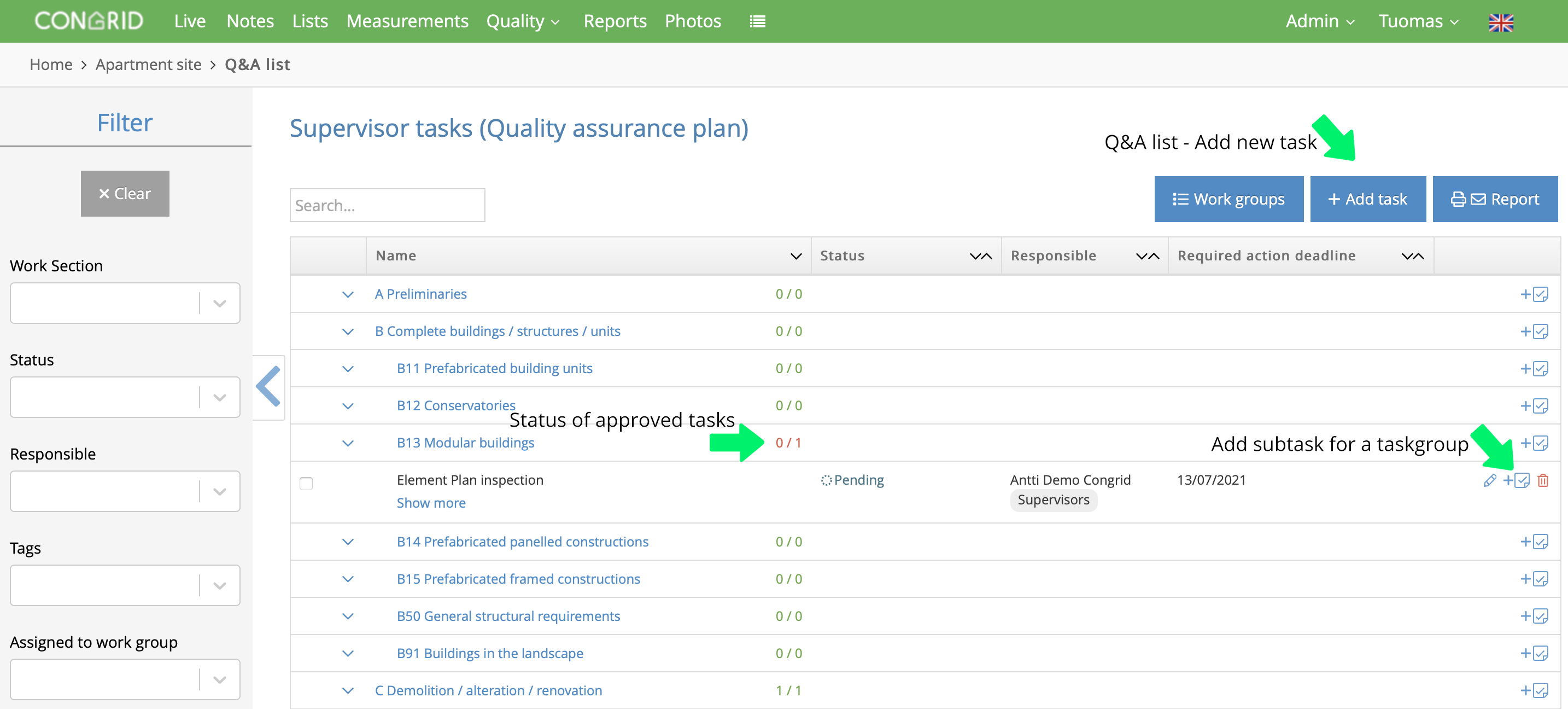
When you select item one or four in the top view, the create task window is displayed
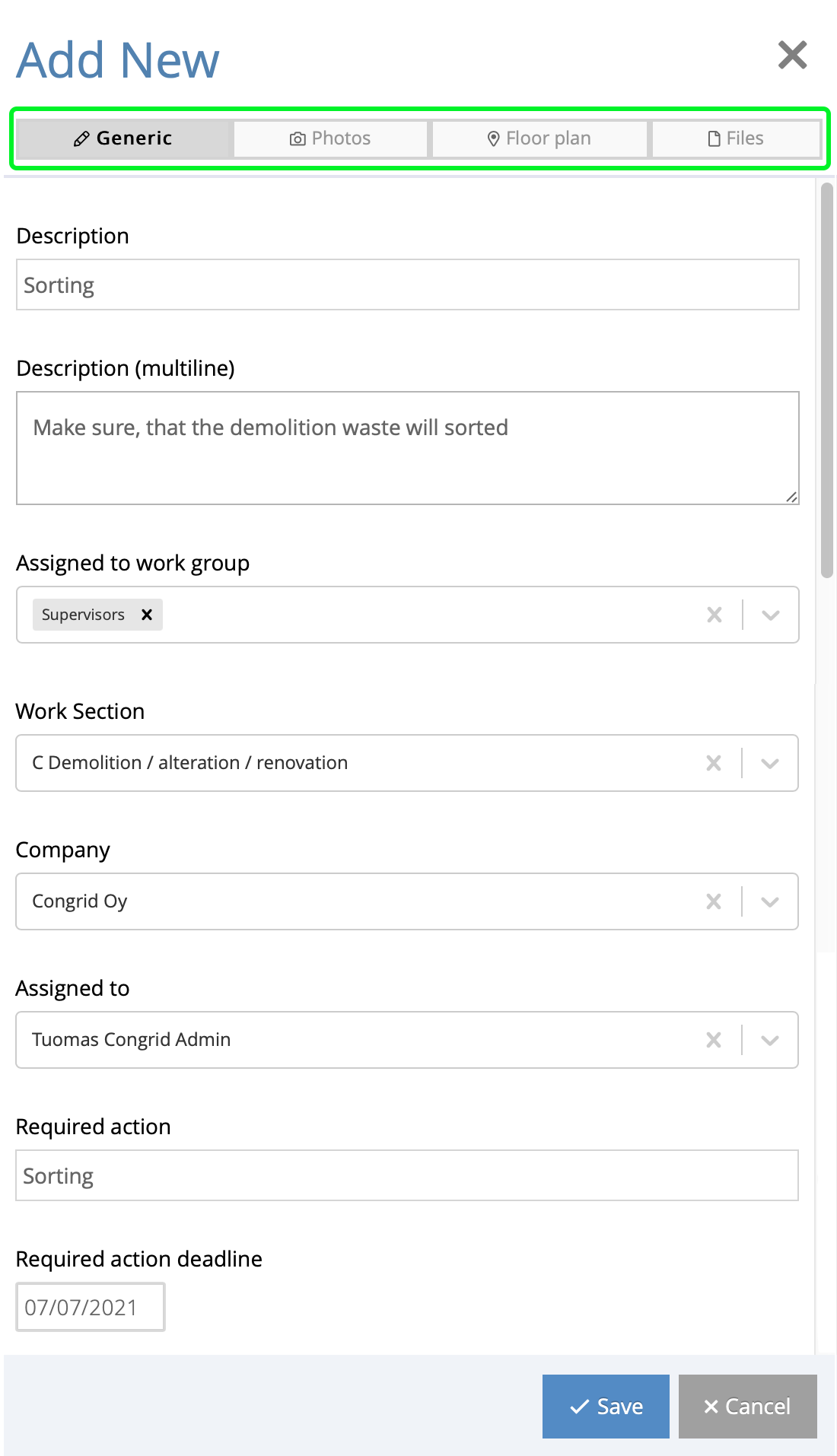
Include the following information when adding a new task:
- Task description
- Description with multiple lines
- Select the workgroups responsible for the task
- Define the work section related to the note.
- Select the contractor responsible for the task
- The required action
- Set a deadline for the task.
The highlighted section at the top indicates your current phase of documenting a note. You can save the task at any point without completing the other sections
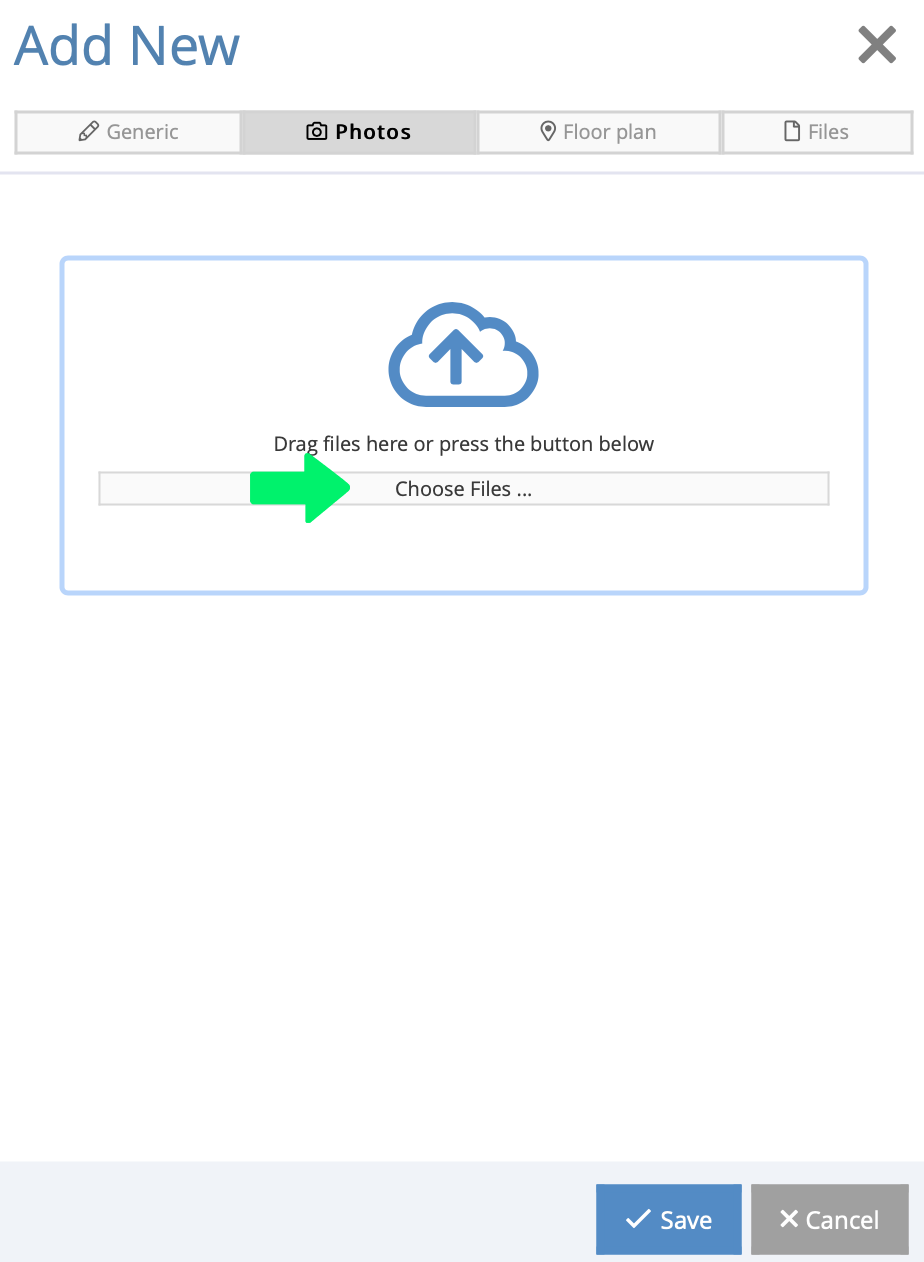
In the next phase, you can add a site photo for the task from your device’s gallery.
You can edit the task template on the measurement and inspection template page. The task template may differ from the example.
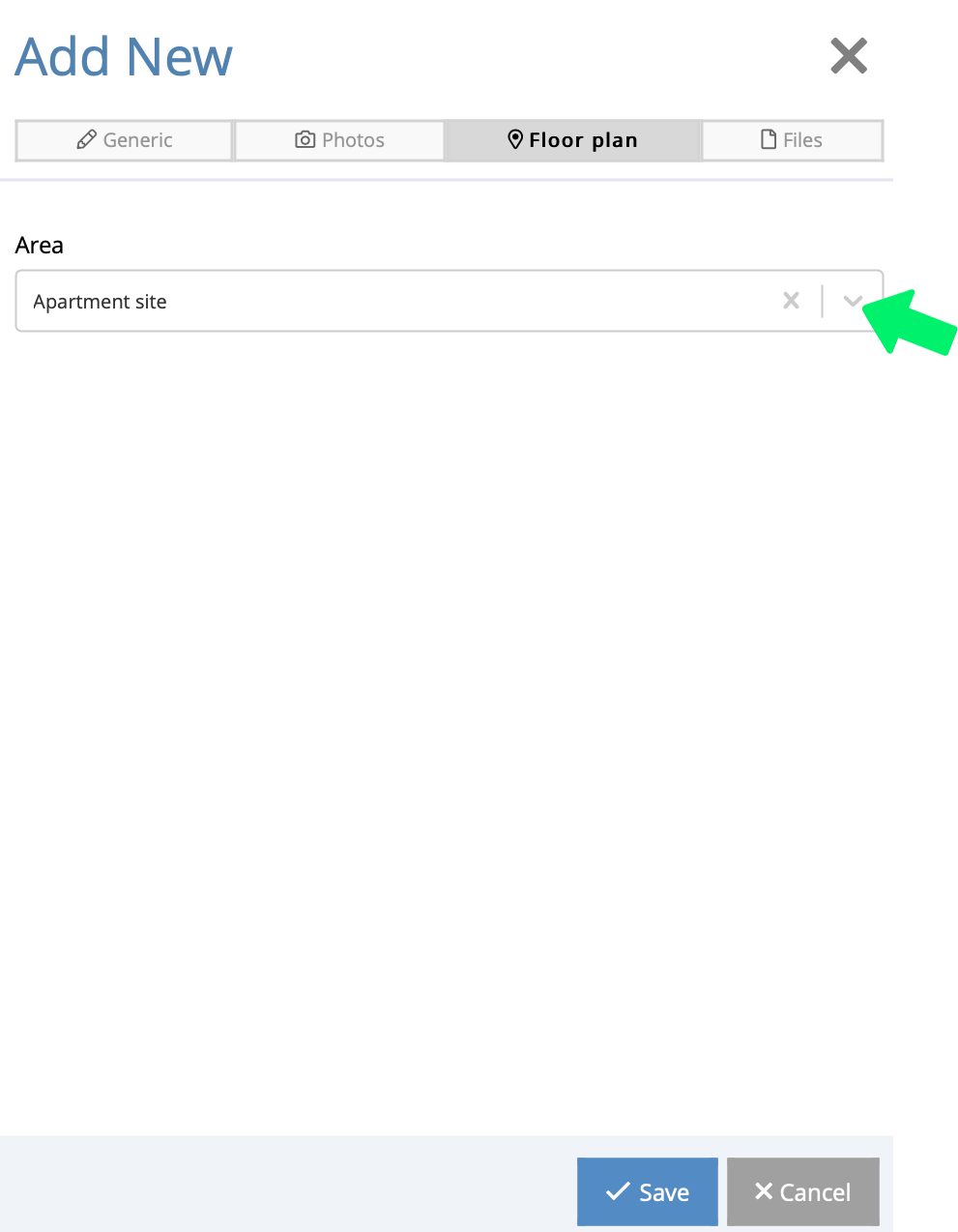
The task’s location is defined in the floorplan section based on the project’s area hierarchy
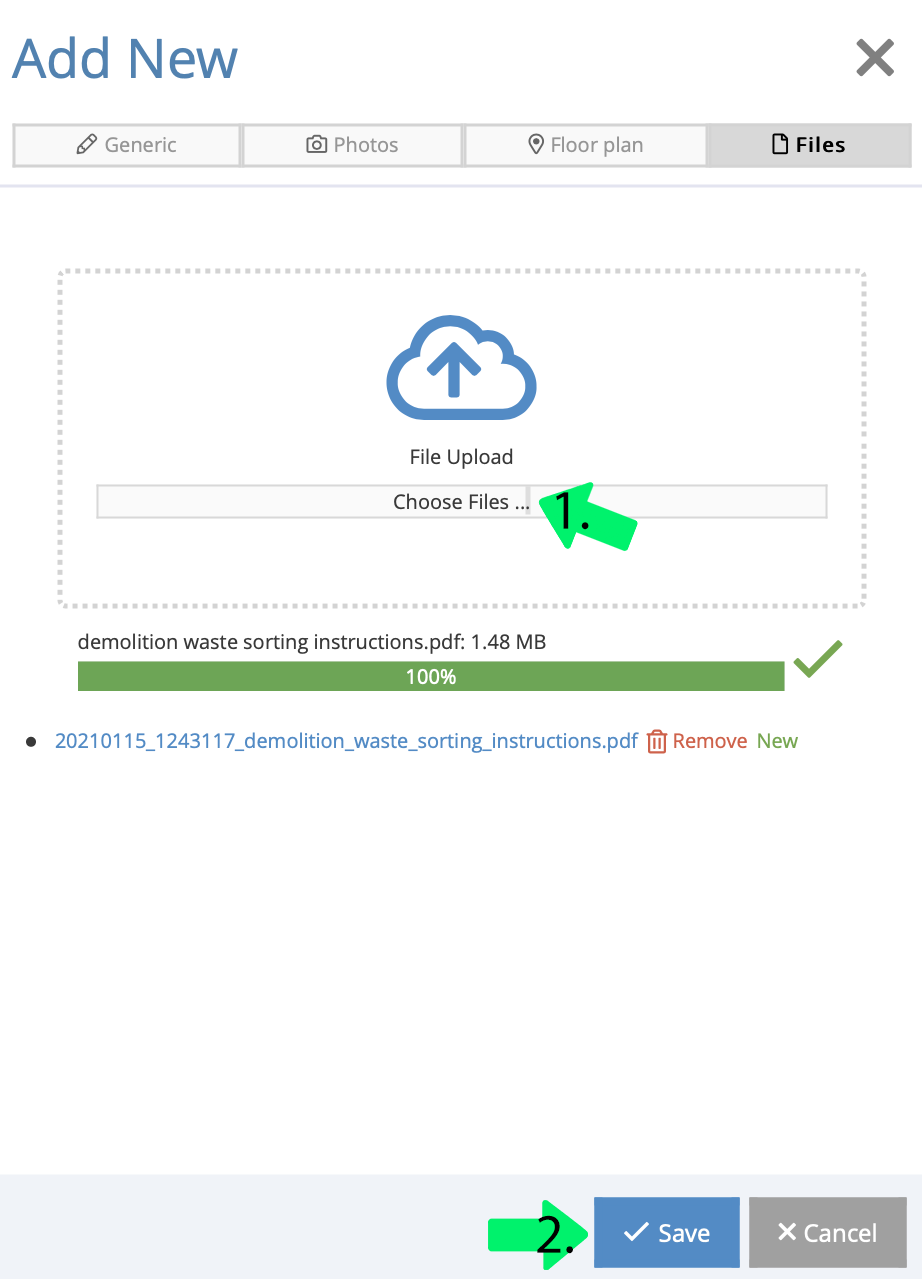
In the last phase:
- Attach files from device files, for example, work instructions or other files to a quality task.
- Lastly, remember to click Save
When you have documented a task, it is displayed under the work section, as presented in the image below.

Button functions:
 Modify a task
 Create a new sub-task for a task – Tasks can have multiple sub-tasks.
 Remove a task
Comments
0 comments
Please sign in to leave a comment.