
Creating a work plan template
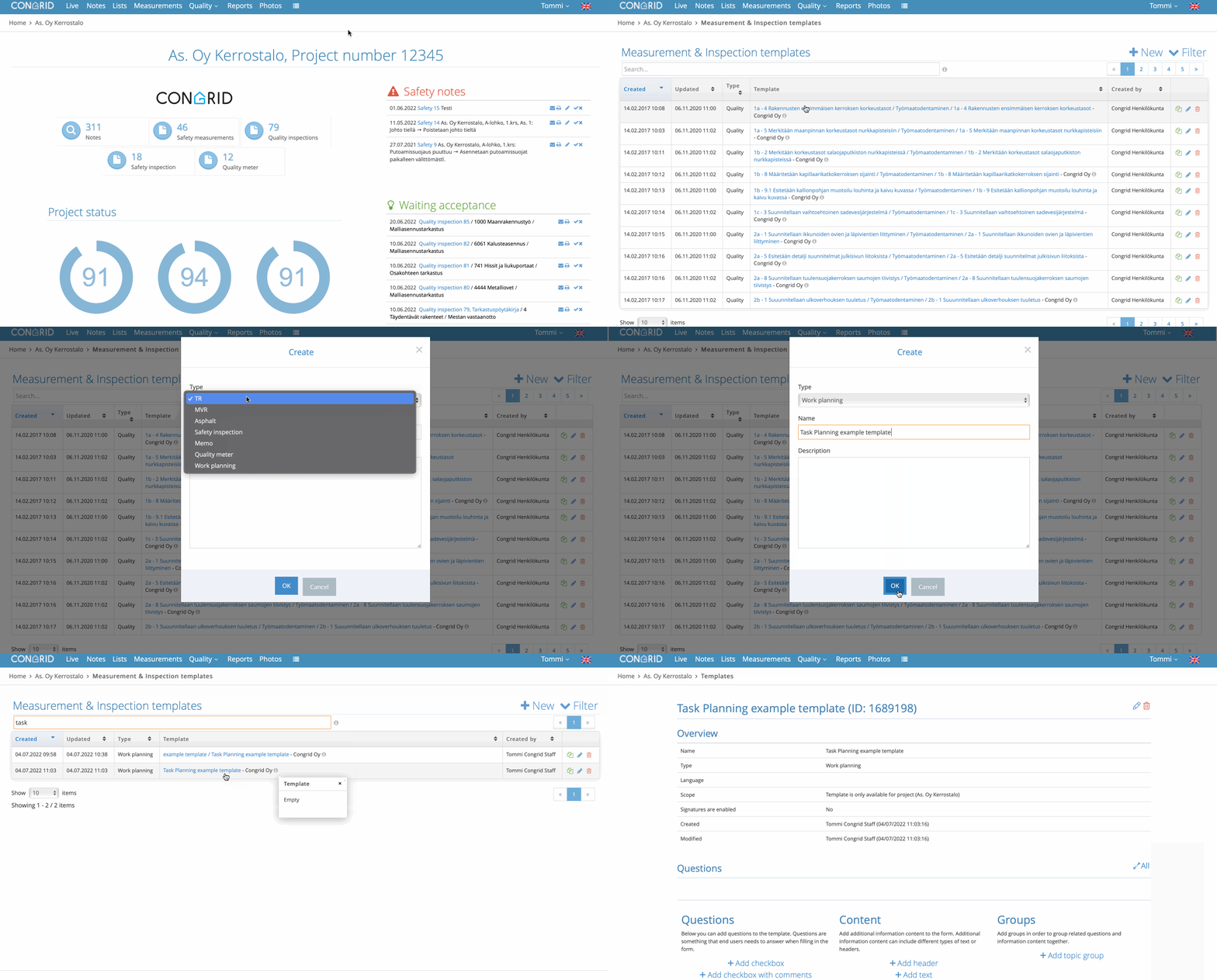
Work plan templates are created on the Measurement & inspection template page.
- Open the measurement and inspection templates from the dropdown menu
- Click on +New, select task plan as the template type and name your plan
- After this, you can find your template through the search field
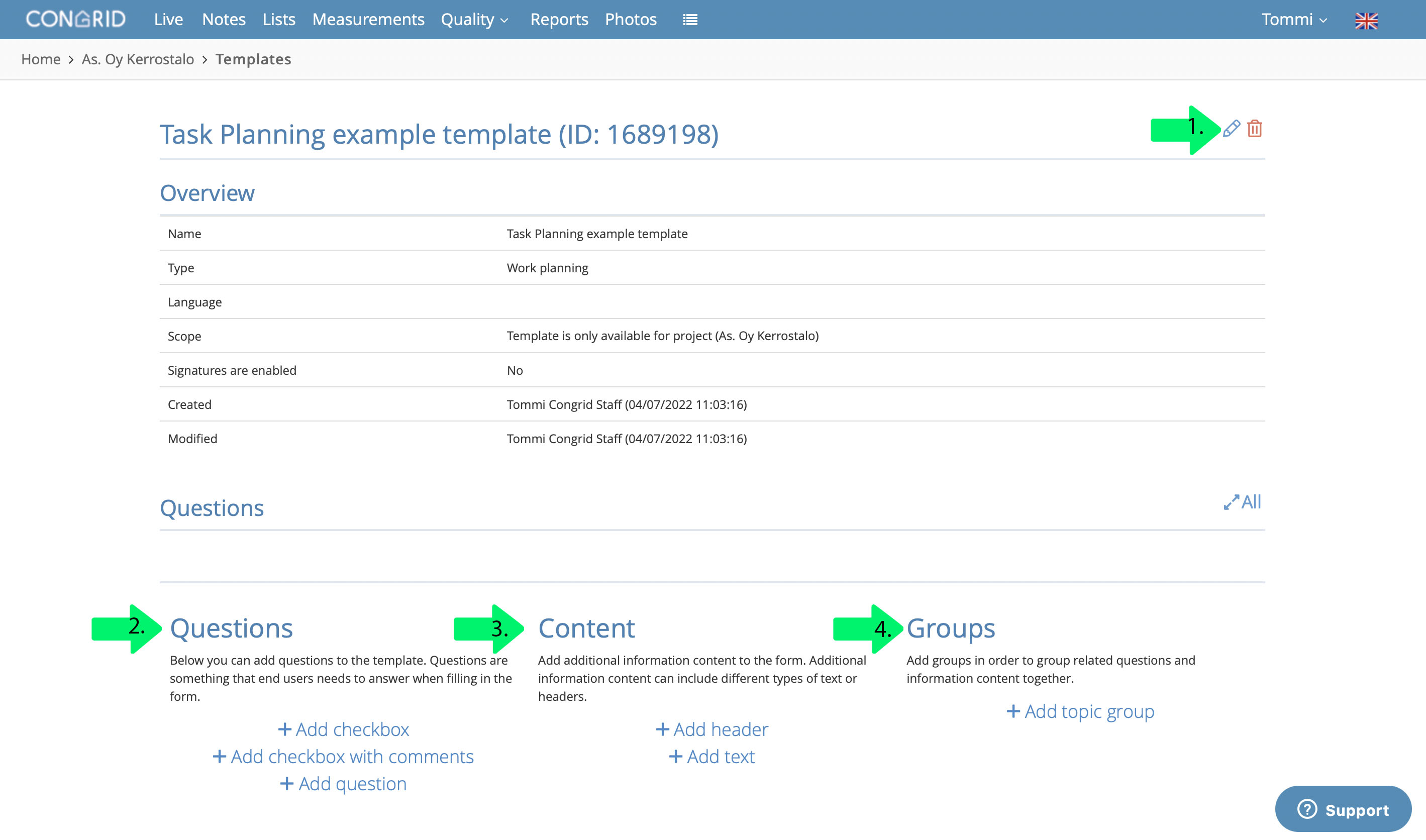
When you open the work plan, it contains the following functionalities:
- Modify the template information
- Create questions
- Create content
- Create groups
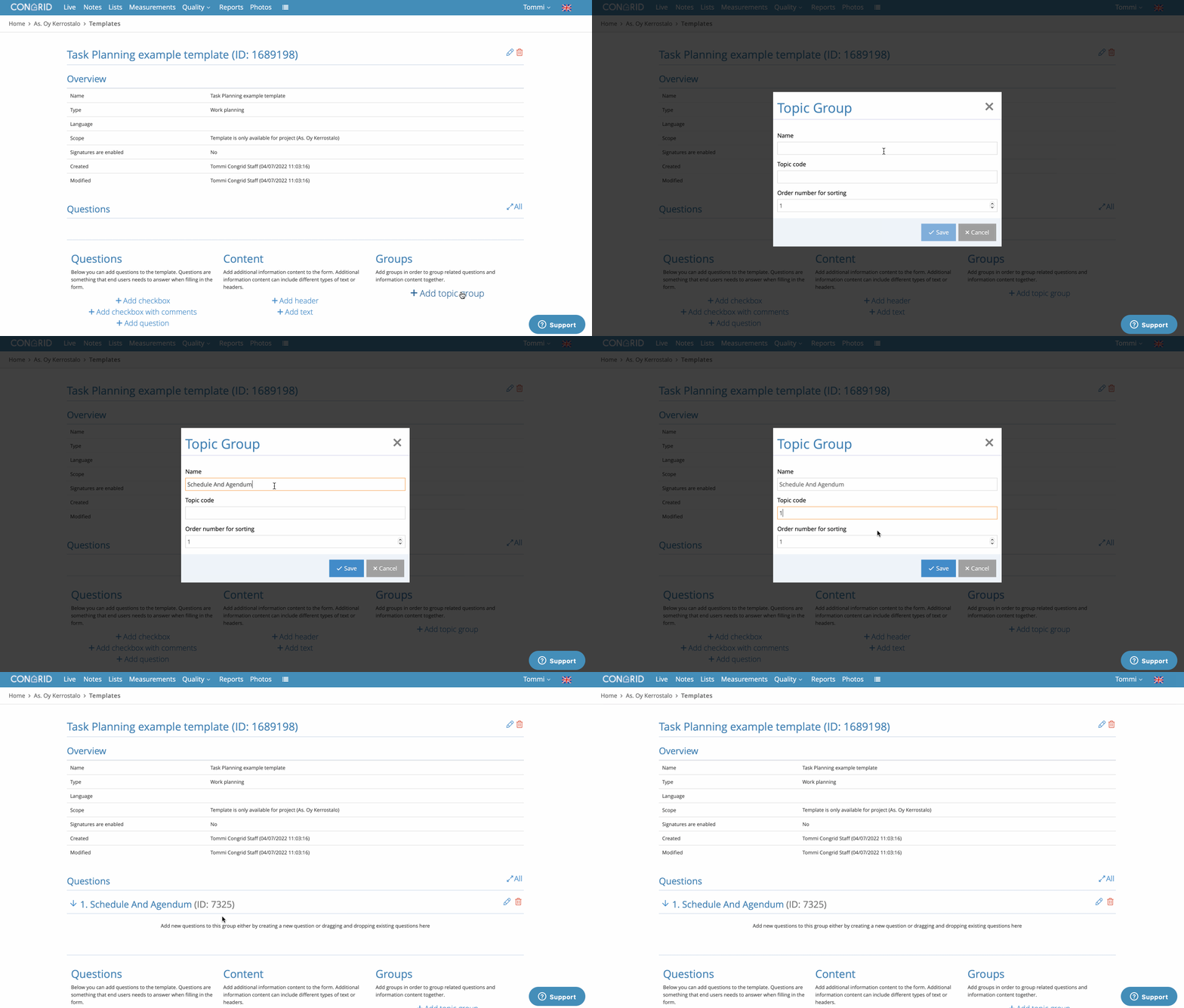
Groups
Groups are main sections for the inspection items, and you can add questions and content under the groups.
Specify the following for groups:
- Name
- Identifier
- Running number, which specifies the location of the group content within the template.
Create inspection item groups as follows:
Questions
Questions serve as the inspection items in the work plan, and the end user can answer the questions as they perform the inspection.
You can add questions in three different formats:
- Selection box and comment field
(The end user filling in the work plan needs to answer the question in writing and select the status.) - Question
(The end user filling in the work plan only needs to answer the question in writing.) - Selection
(The end user filling in the work plan only needs to select the status.)
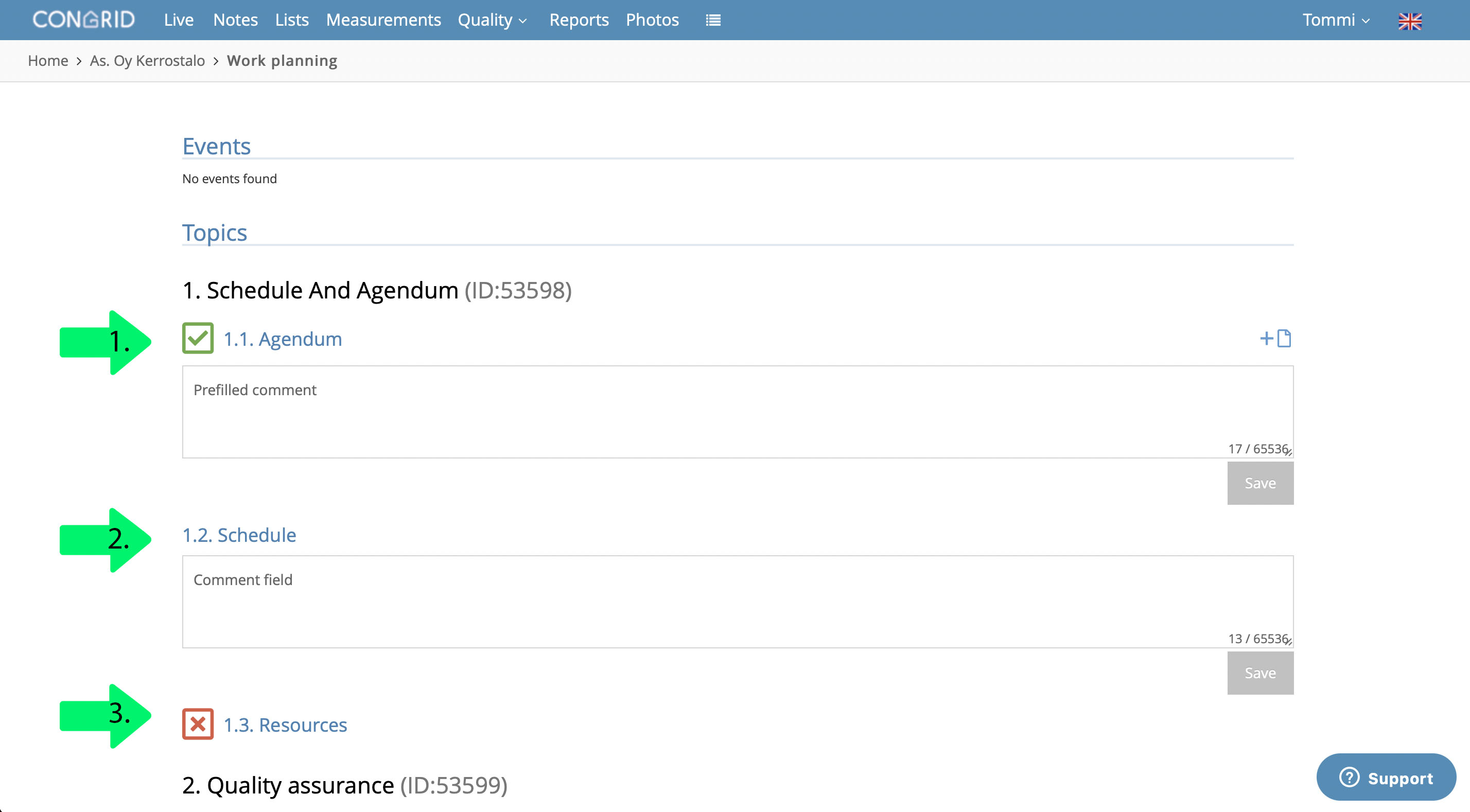
You can add questions as follows:
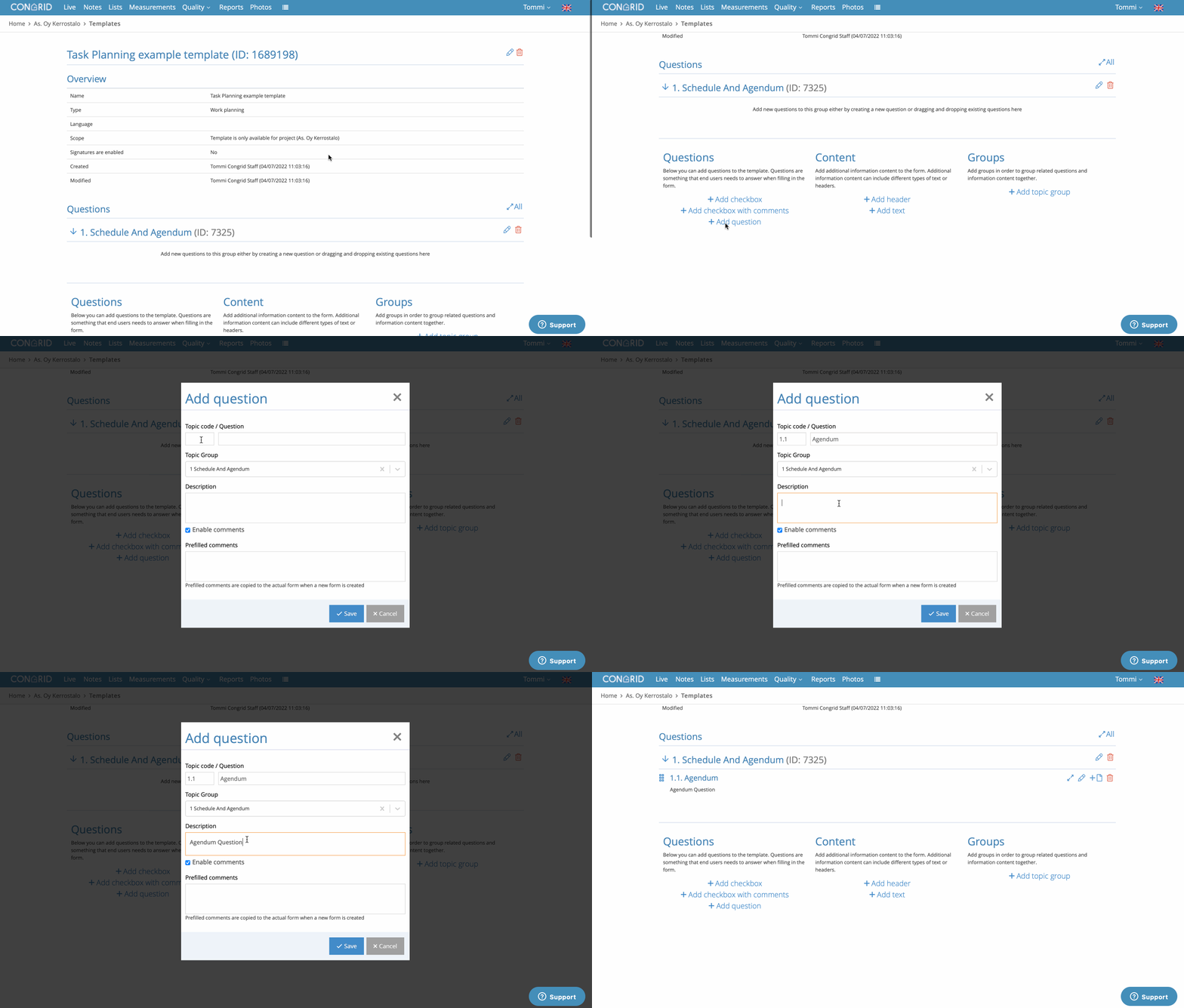
Selection box and comment field
When you want to add a question with a selection box and comment field you can specify the following information:
- Item identifier / Question
- The group to which the question belongs
- Description of the question
- Enabling comments
- Pre-filled comments
- Enabling status
- Available status options
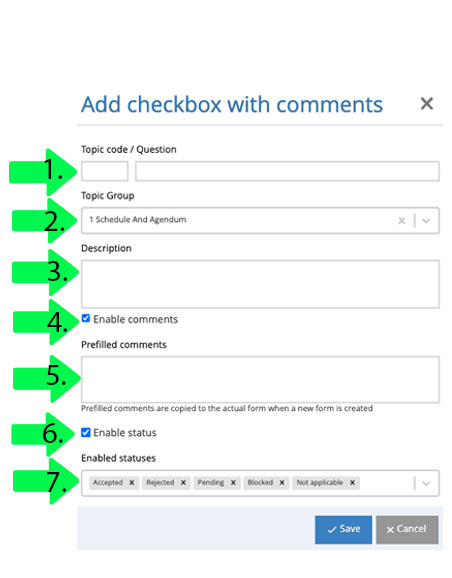
In the other question formats, the content is more limited. For example, the question only format does not include statuses.
Content
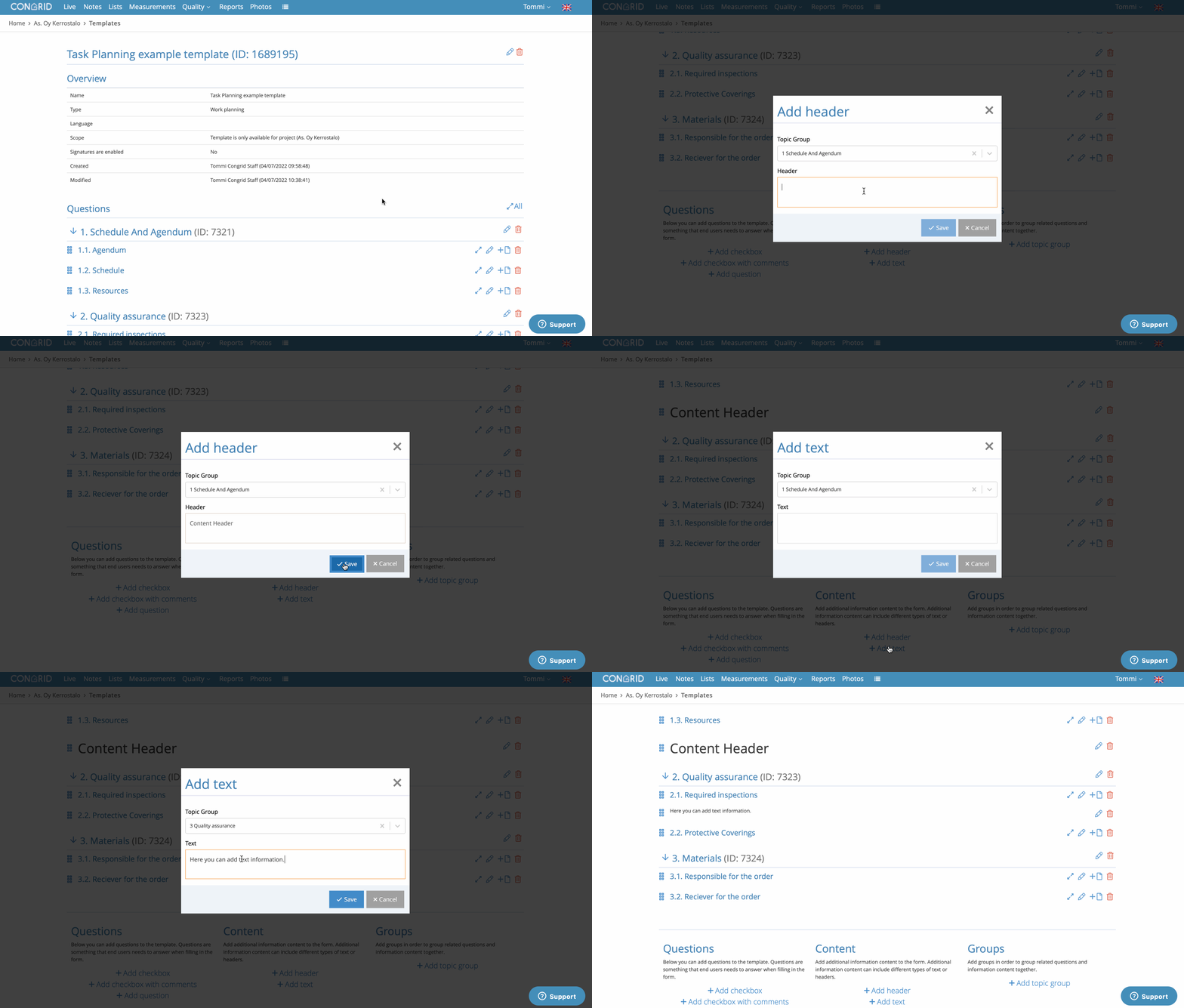
You can add content to your template. This can be either headers or text.
Take the following steps to add content:
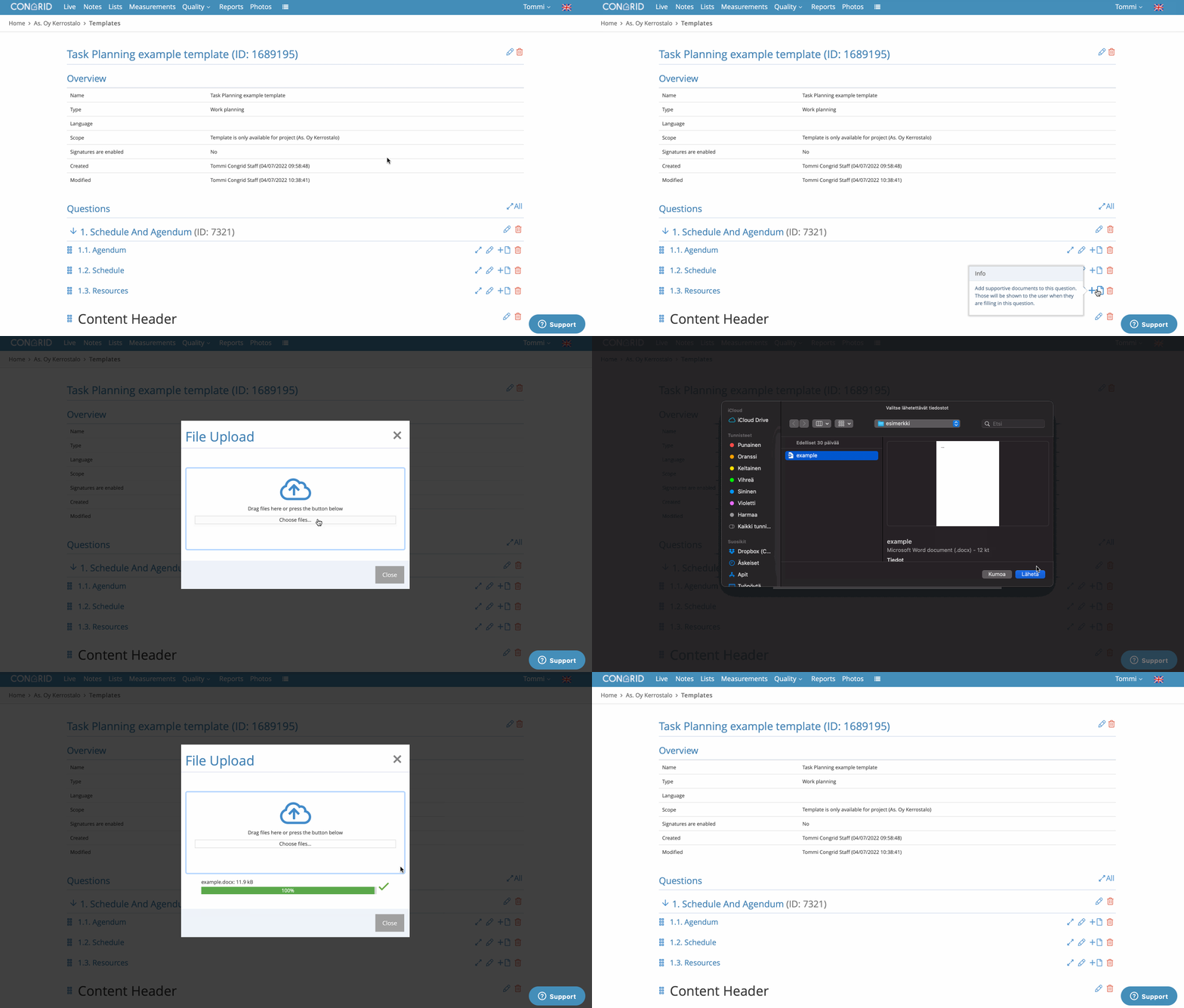
Add files to a question
After you have added questions to the template, your can add files to them using the  -icon.
The user sees the files added to the question when they fill in the question. You can add, for example, internal guidelines, terms and conditions or other documents that should be read in connection with filling in the work plan.
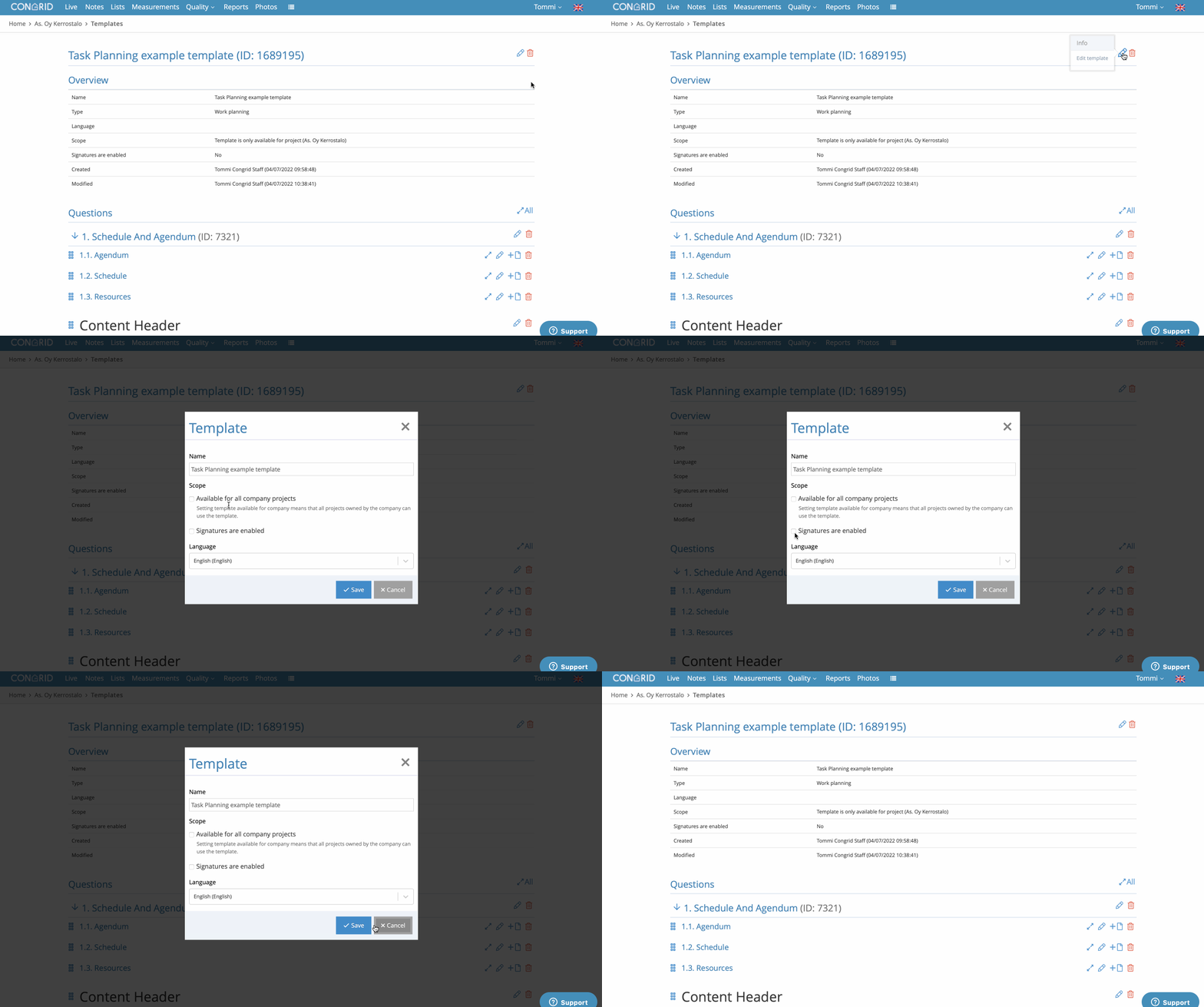
Editing a work plan template
You can edit the work plan template by clicking on the  -icon on the upper right-hand corner.
In the edit menu, you can:
- Edit the template name
- Make the template available to all projects
- Enable signatures on the template
- Change the template language
Editing questions
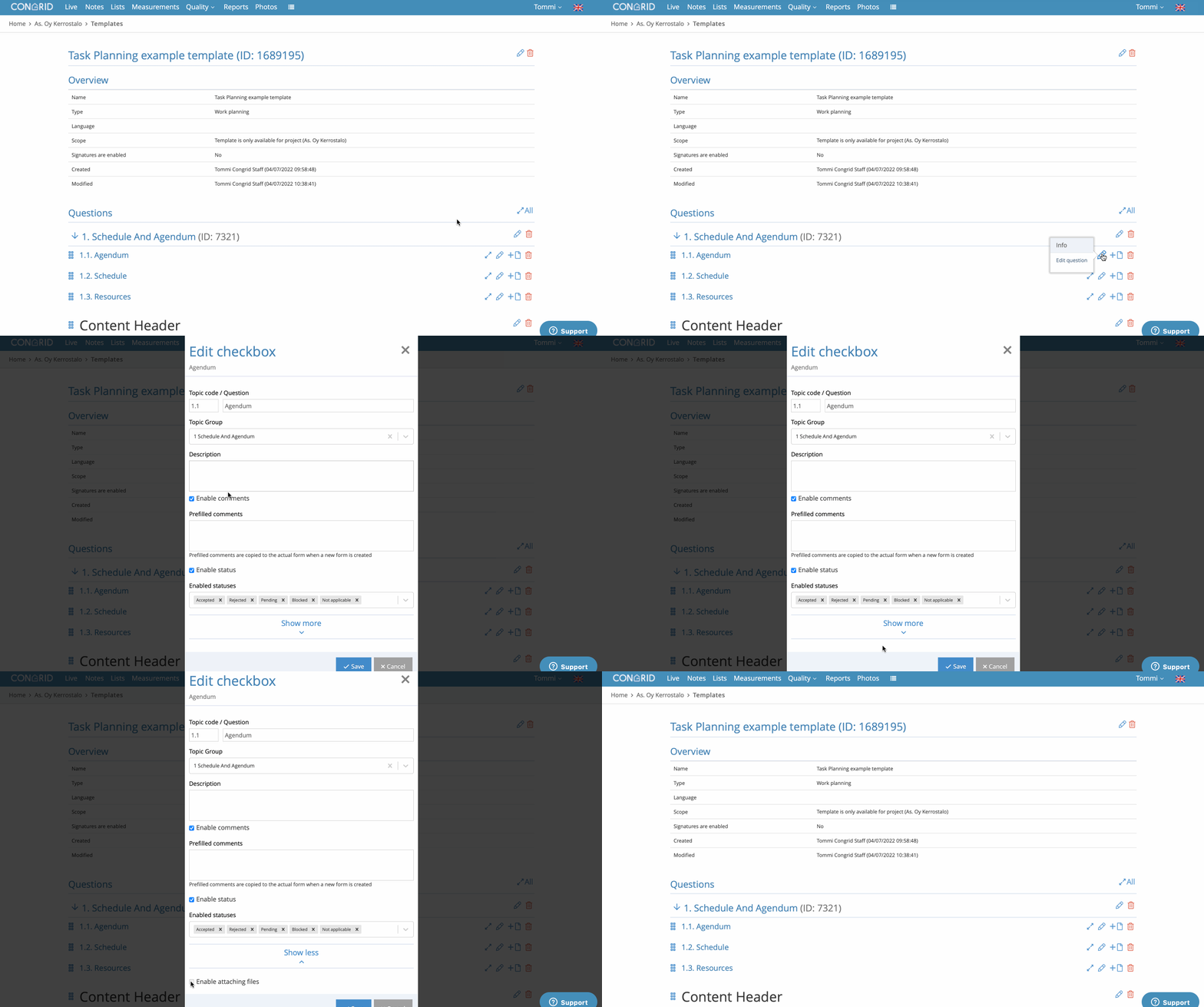
You can edit the questions by clicking on the -icon.
Note: Click on the Show more at the bottom of the editing window to enable or disable status selection and the adding of files.
Enable status selection = Allows the end user filling in the task plan to set the status of the question.
Enable attachments = Allows the end user filling in the work plan to add files to the question on the work plan (for example, a contractor’s calculation and production planning documents, etc.)
Order of the questions/content
You can change the order of the questions and content of the work plan by dragging and dropping.
You can even move questions and content between different groups.

In case of any problems, please contact support@congrid.com
Comments
0 comments
Please sign in to leave a comment.