
A main contractor must enable a project's subcontractors' QualityLITE quality inspections.
Project Tools
A project has to have certain software tools enabled for quality inspections.
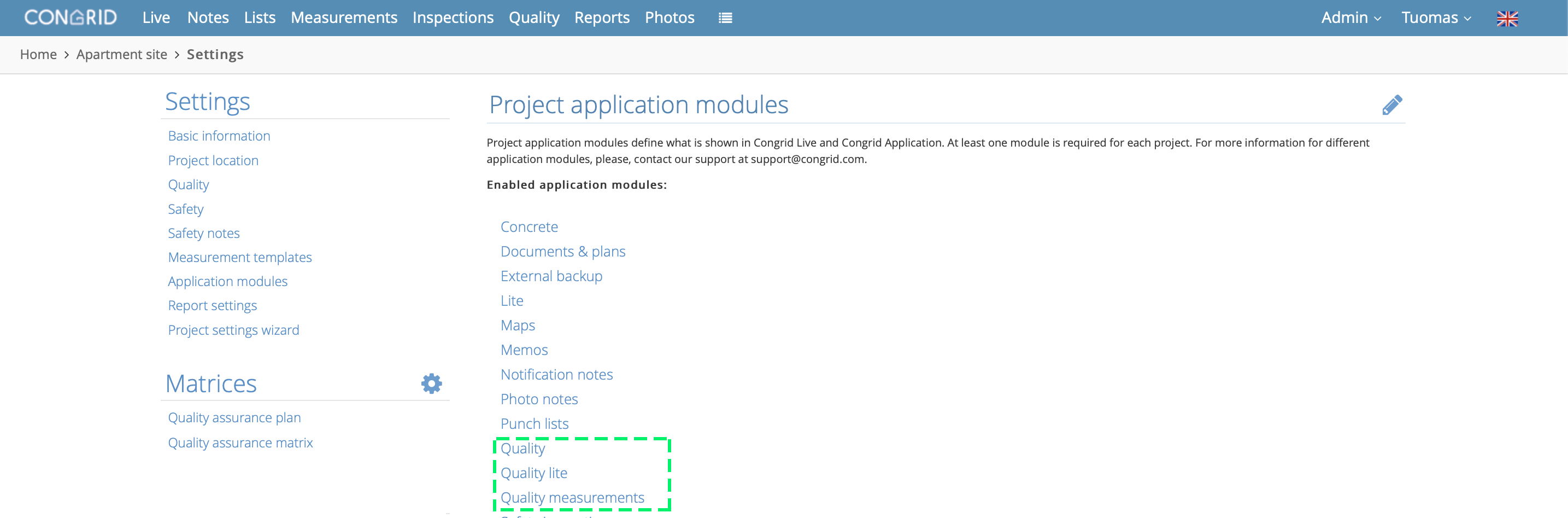
These software tools are Quality, Quality Inspections and QualityLITE.
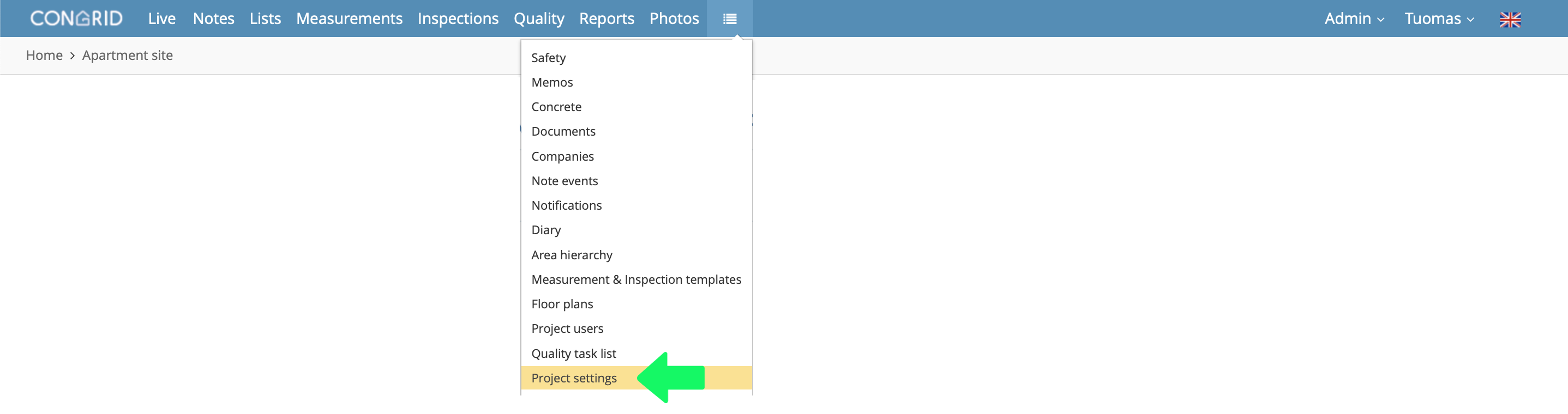
First, open Project Settings to ensure you have the software tools enabled.
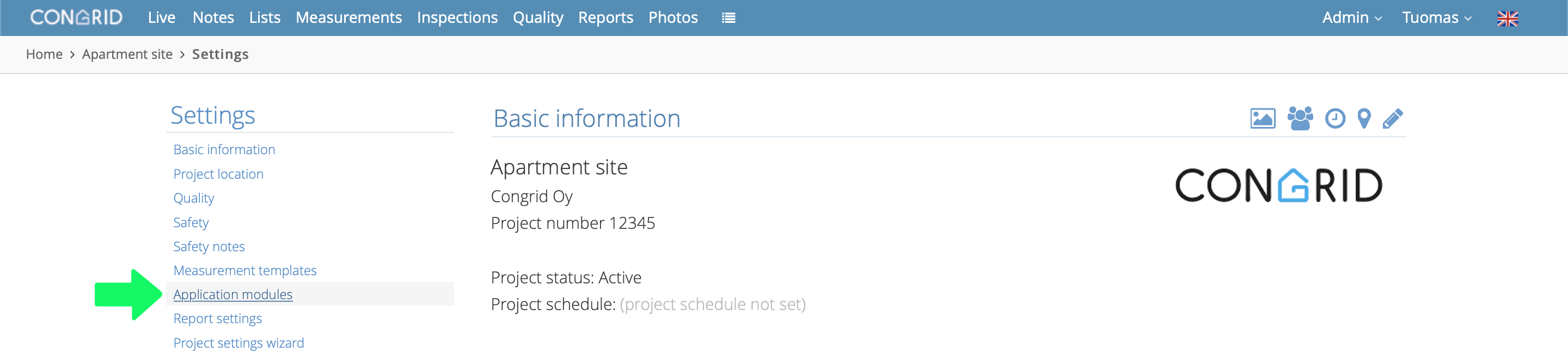
Then click Application modules.
Now you should see Quality, Quality Inspections and QualityLITE -texts.
If you don't see the mentioned application modules, please contact your company's Congrid admin user or tuki@congrid.fi
Subcontractor's QualityLITE license
After checking a project's enabled software tools, please ensure your company's subcontractor has the QualityLITE license.
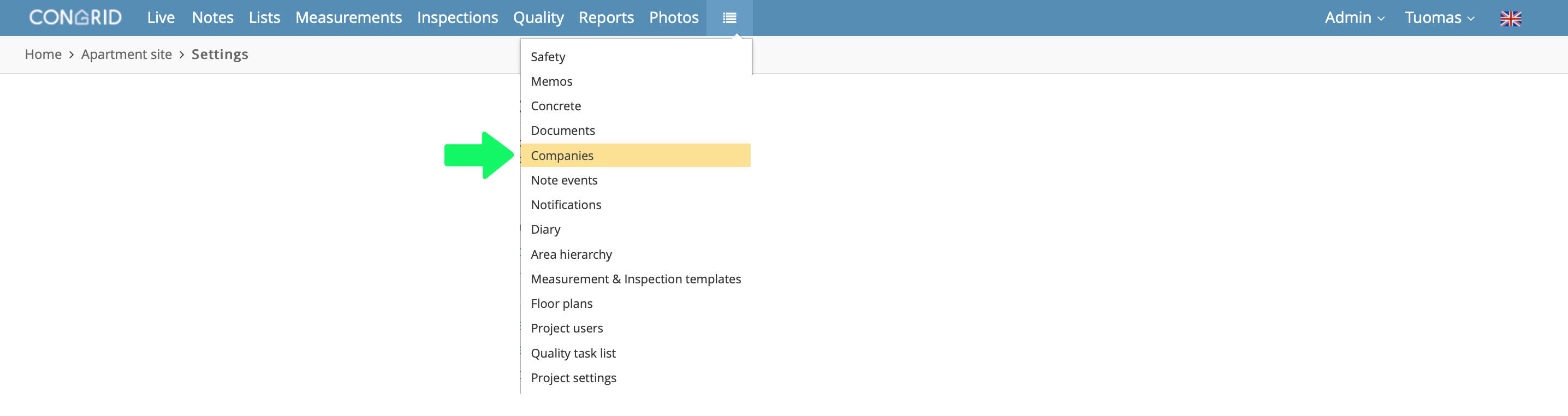
Start by opening the Companies page.
Then open the contractor you want to view.
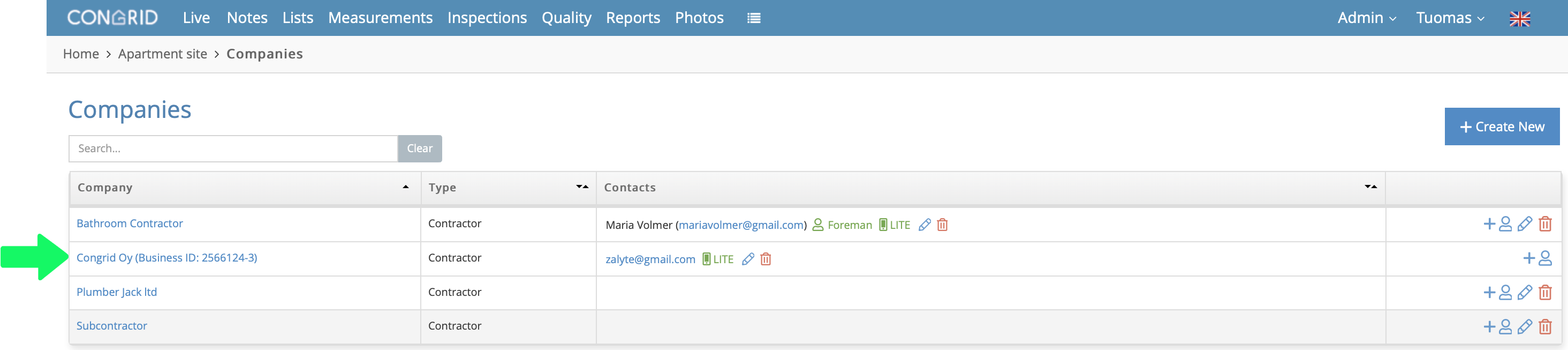
If you can't find a contractor, see instructions on how to add new companies and new users:
Add new companies & Add new Lite users
After opening the Contractor page, check they have  icon on their information.
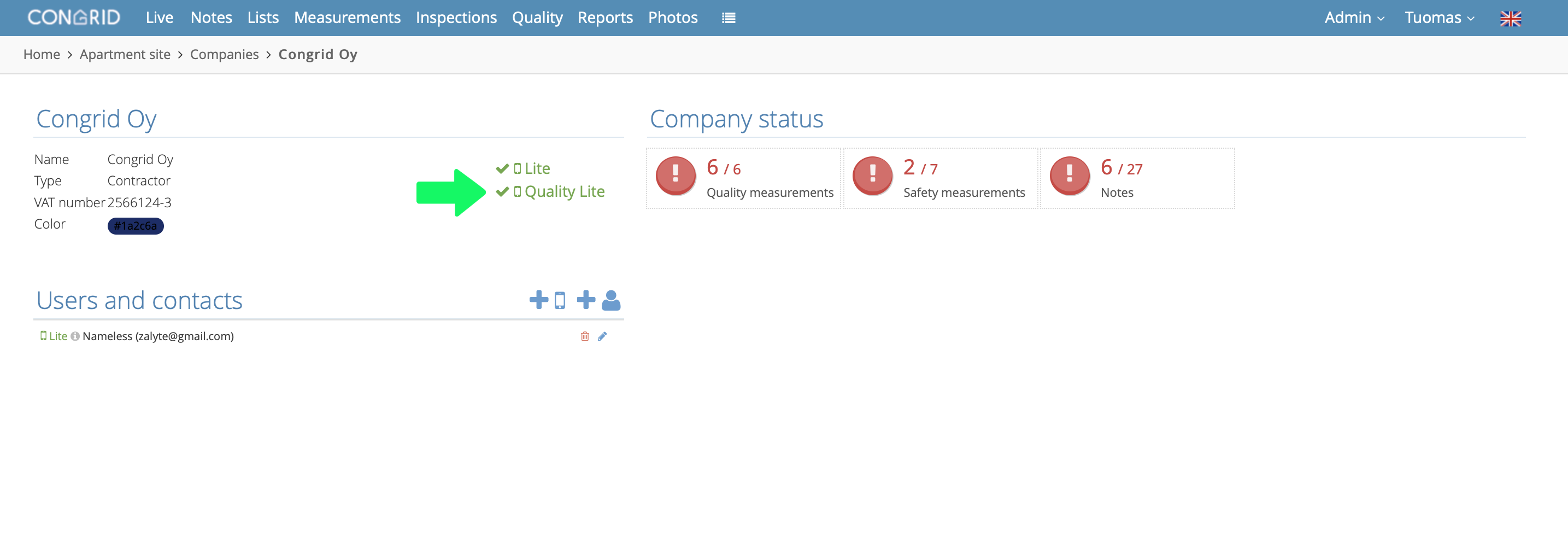
If a contractor has this icon:  , please contact tuki@congrid.fi Quality device licenses are company-specific and can only be activated by Congrid staff.
CongridLITE® User's Rights
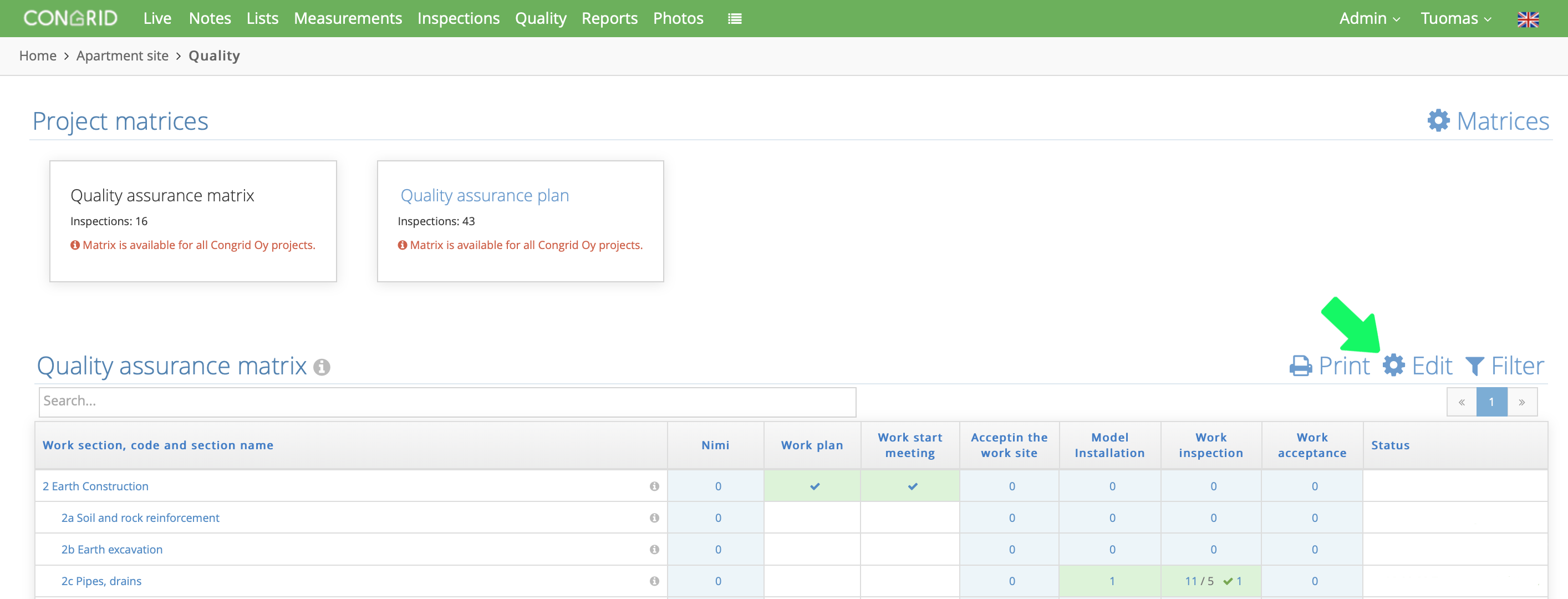
Open a project's Quality assurance matrix on the Quality tab.

Click the edit -text above the matrix.
Then click the  icon under the work section you want to assign to a contractor.
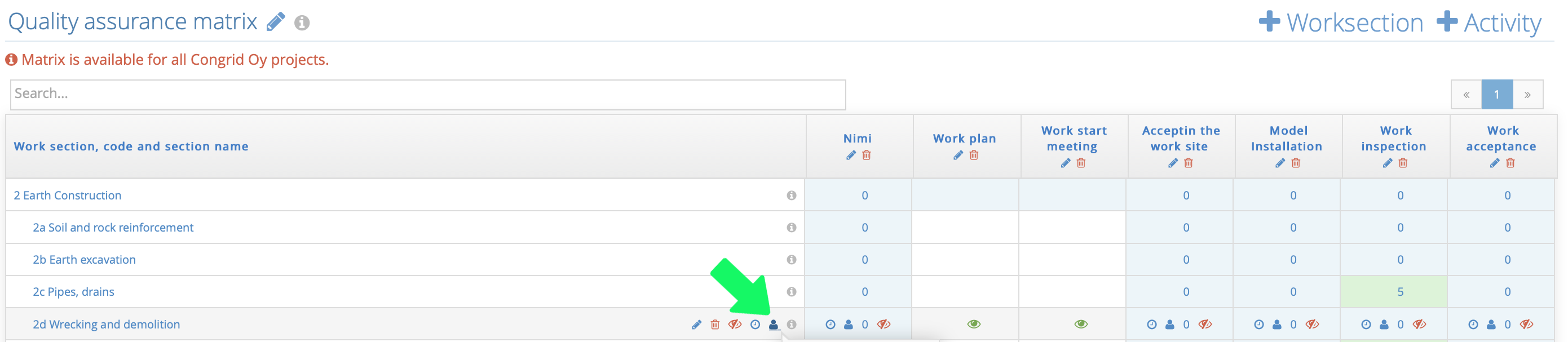
A new popup window appears. Add a contactor's inspectors.
Click Ok to finish.
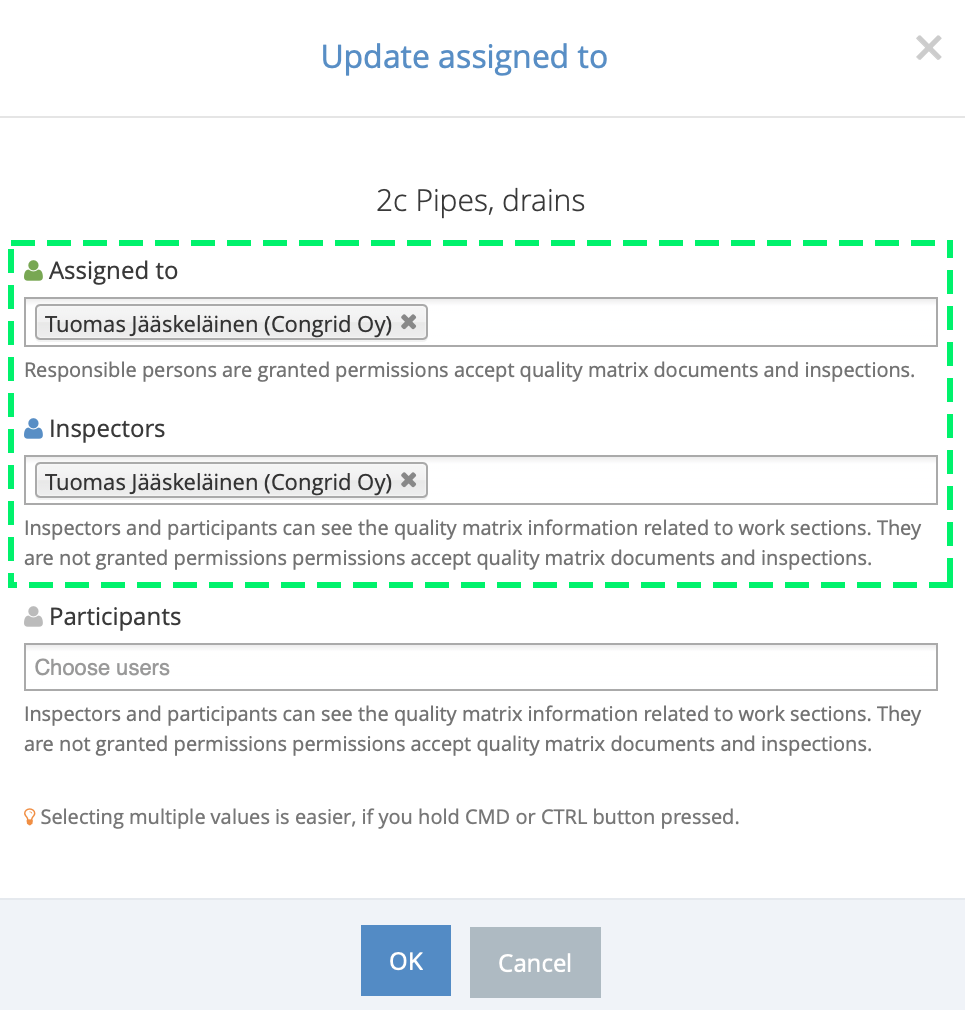
Now a contractor is able to view a work section's inspection templates on Congrid App's Quality Inspections.
(View QualityLITE's inspection instructions here: QualityLITE - Inspection)
Comments
0 comments
Please sign in to leave a comment.