
How to Add Measurement and Inspection Templates
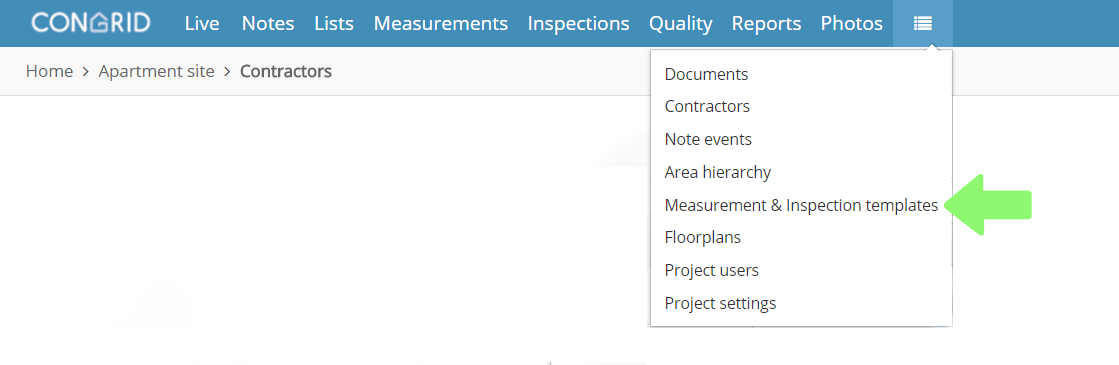
Select Measurement & Inspection templates in the drop-down menu to view all templates.
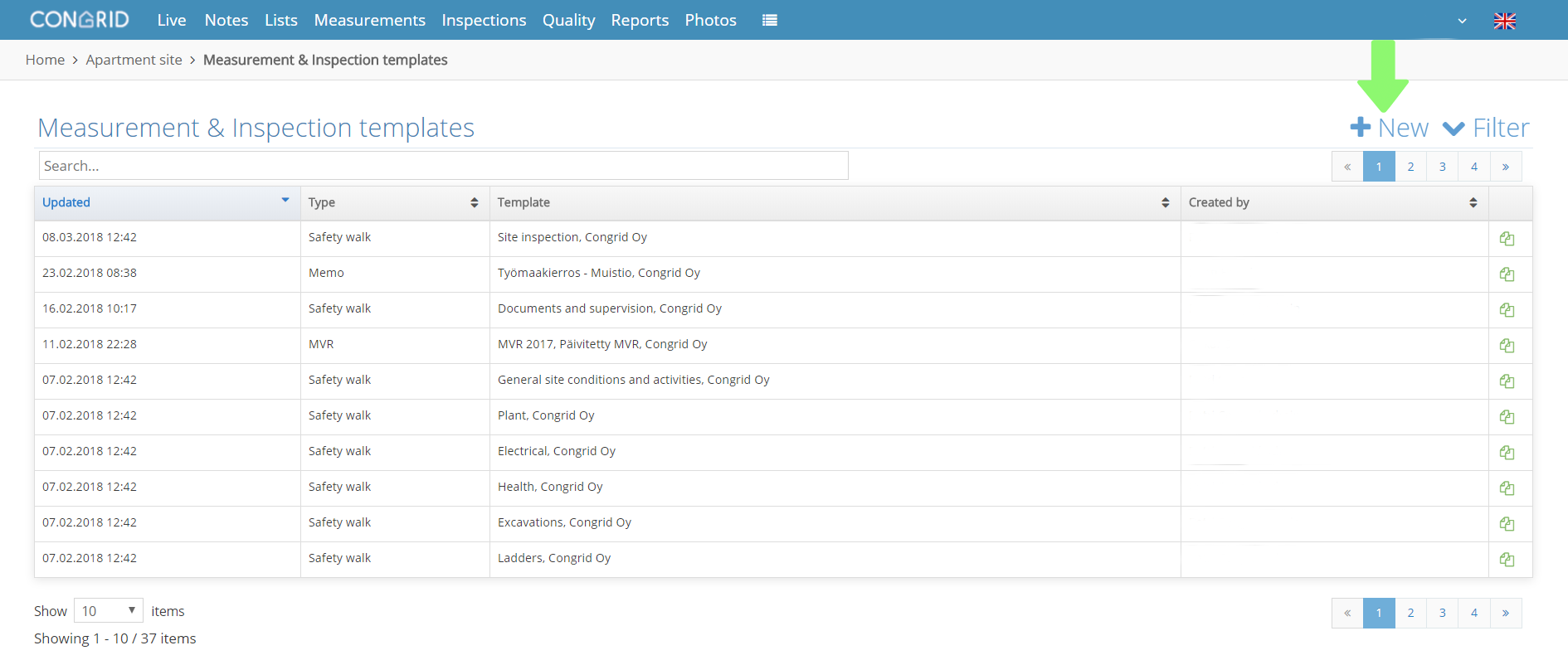
Click + New to add a new template
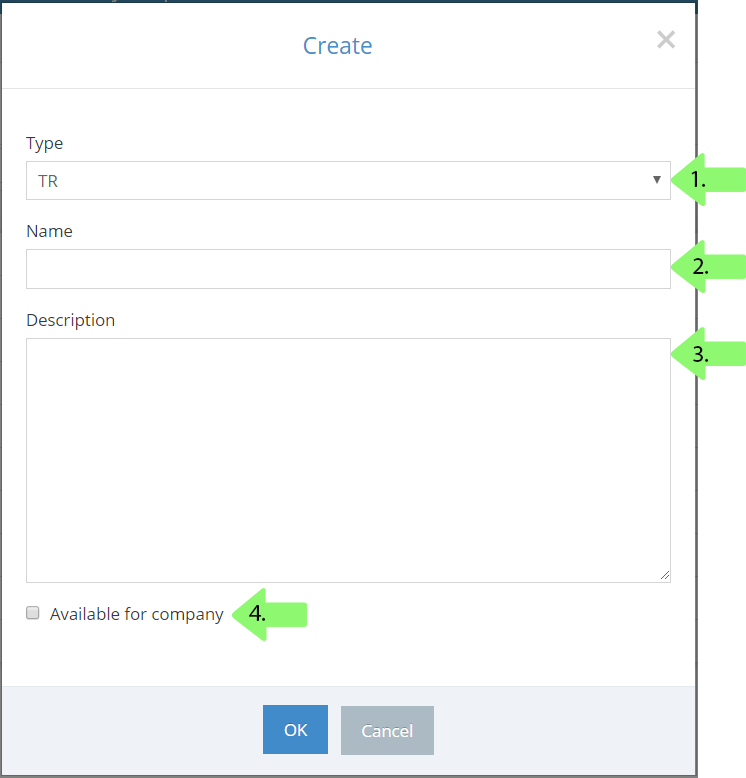
A new window appears where you can set the basic information for a template.
1. Define a template's type by choosing one of the following:
- TR
- MVR
- Tarmac
- Asphalt
- Safety walk
- Memo
- Quality meter
- Induction
Some of the above-listed options may not be available without a certain module.
1. Select a measurement type
2. Enter a name for a template
3. Add a description
4. Tick the box to add the new template for all company projects.
Edit a template's content by clicking its name.

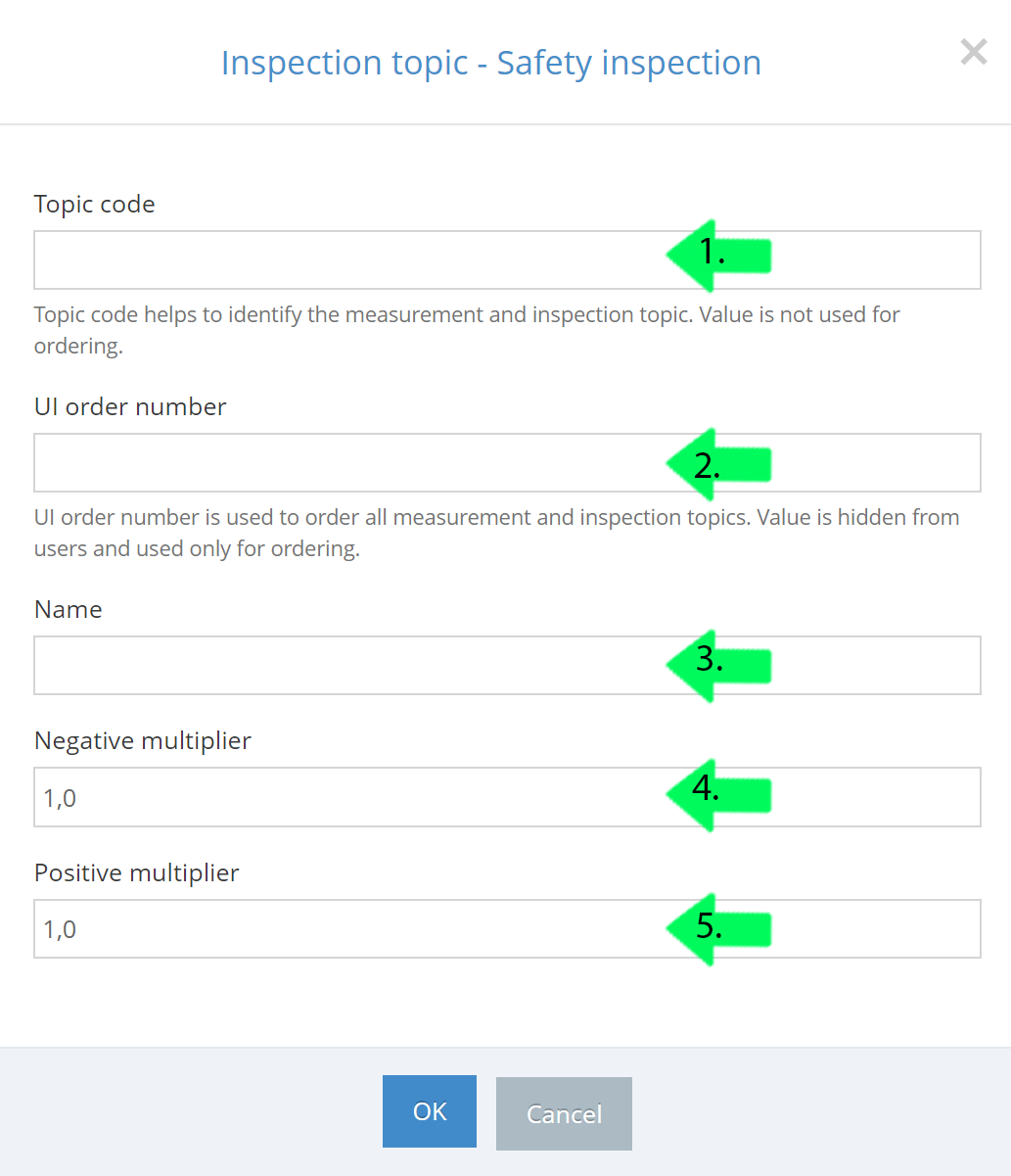
Click Inspection Points to add new measurement and inspection template targets.

1. Define a topic code
2. Add UI order number
3. Enter a name
4. Define a negative multiplier (how much one minus note affects the measurement result)
5. Define a positive multiplier (how much one plus note affects the measurement result)
After adding a point, you can set additional information that helps a measurement's maker.
1. What is being inspected (scaffold, ladders etc.),
2. Where one can add +/- notes,
3. What things must be observed, and
4. Typical faults.
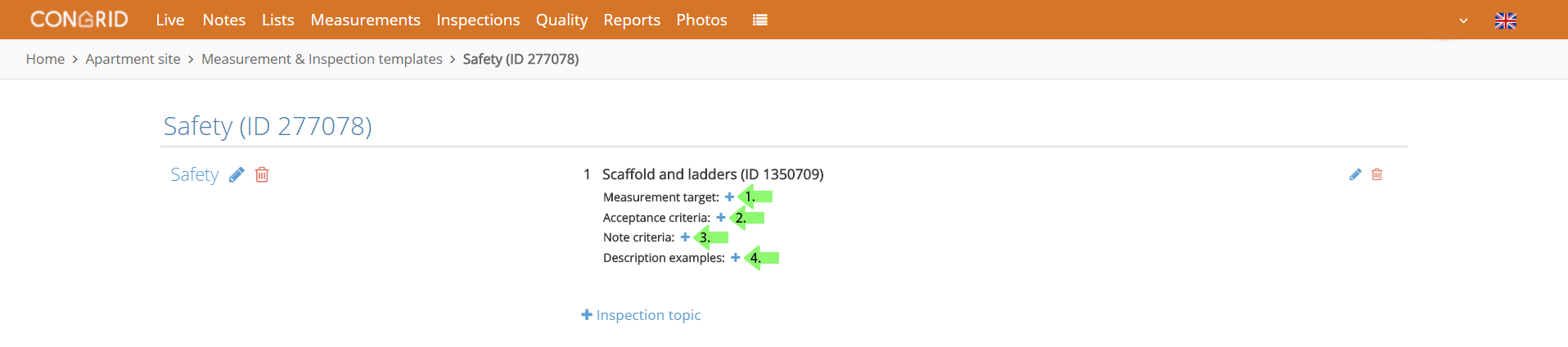
When the fields are filled you can add another inspection point.
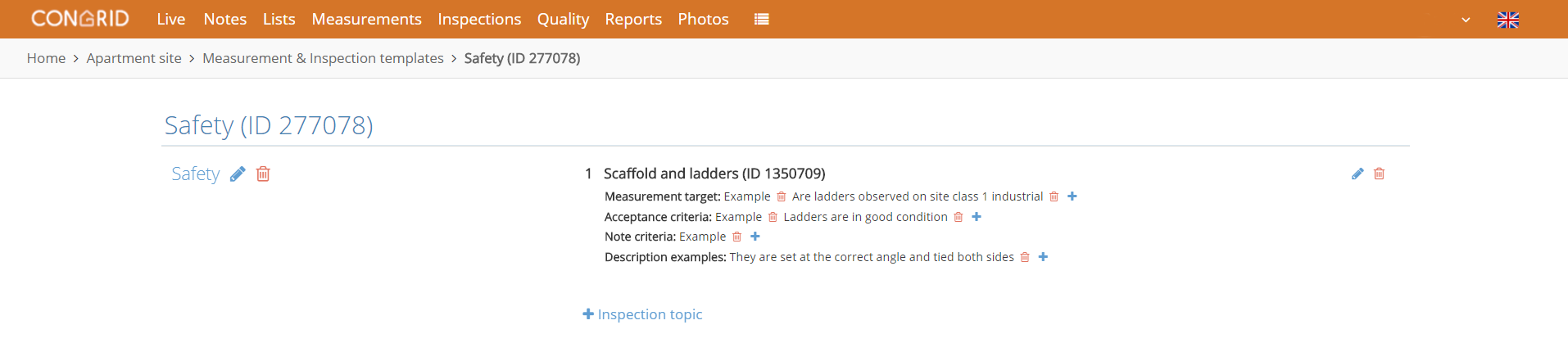
An example of how a finished measurement appears on a Mobile Device.

Comments
0 comments
Please sign in to leave a comment.